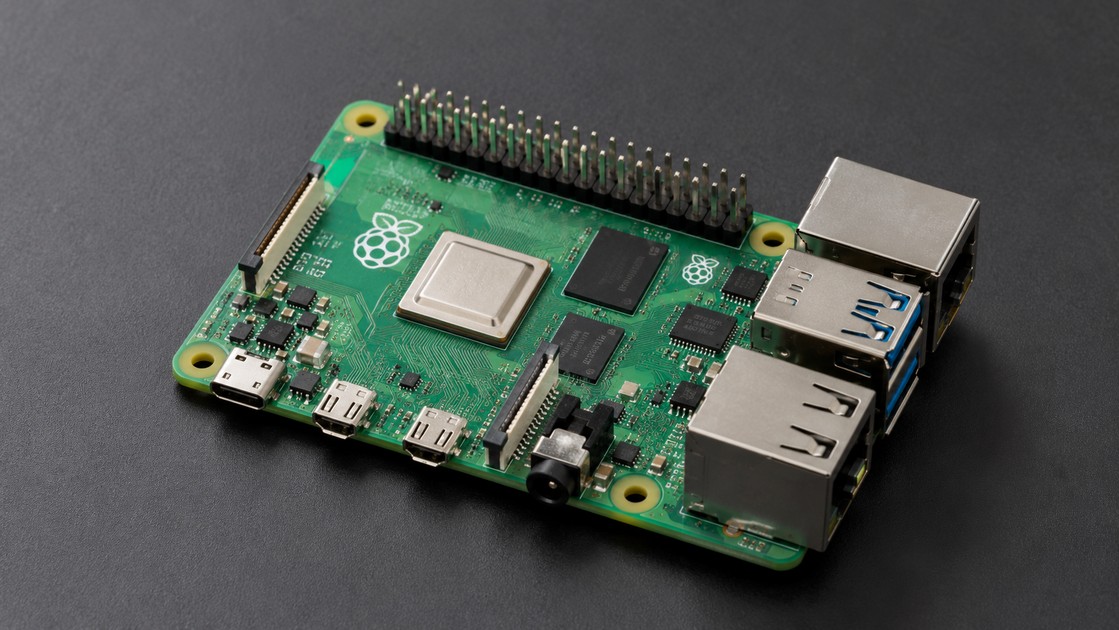
上一章我們完成了第一個真正的 Raspberry Pi GPIO Output 專案:
Python
   ↓
GPIO Output
   ↓
LED
我們已經可以控制:
- LED ON
- LED OFF
- LED Blink
- 4 顆 LED 流水燈
- 8 顆 LED 跑馬燈
- 往返流水燈
但是整個系統目前仍然是:
Raspberry Pi 主動告訴硬體該做什麼。
本章要加入相反方向的資料流:
讓外部硬體把狀態送進 Raspberry Pi。
也就是:
Push Button
     ↓
GPIO Input
     ↓
Python
接著就可以建立:
Button
   ↓
Python
   ↓
LED ON / OFF
甚至:
Button +
    ↓
跑馬燈加速

Button -
    ↓
跑馬燈減速
從這一章開始,Raspberry Pi 不再只是單向控制設備,而開始具有真正的:
Human-Machine Interaction
也就是人機互動能力。
1. GPIO Input 是什麼?
上一章使用:
GPIO Output由 Raspberry Pi 主動輸出:
HIGH
LOW
本章則使用:
GPIO Input由 Raspberry Pi 讀取外部訊號。
Raspberry Pi 官方說明,設為 Input 的 GPIO 可以讀取 High(約 3.3V)或 Low(約 0V),而內部 Pull-up / Pull-down 可以協助避免輸入處於不確定狀態。
概念:
External Circuit
       │
       ▼
GPIO Input
       │
       ▼
Python
2. GPIO Input 可以讀什麼?
常見 Input Device 包括:
- Push Button
- Toggle Switch
- Limit Switch
- Reed Switch
- PIR Sensor
- Digital Sensor
- Encoder
- Alarm Contact
- Float Switch
本章先從最簡單的:
Push Button
開始。
3. Push Button 是什麼?
我們使用的是一般:
Momentary Push Button
也就是按住時接通、放開時恢復原狀的按鍵。
常見狀態:
沒有按
=
Open Circuit

按下
=
Closed Circuit
這種按鍵通常稱為:
Normally Open,NO
4. 什麼是 Normally Open?
Normally Open:
NO表示正常未按時:
Circuit Open按下:
Circuit Closed例如:
GPIO ── Button ── GND沒按:
GPIO X GND按下:
GPIO ───── GND這就是本章主要使用的 Push Button 接法。
5. 四腳按鍵為什麼有四支 Pin?
Breadboard 常見小型 Push Button 具有四支腳。
通常內部其實是:
A ───── A

B ───── B
左右兩組平常不相通。
按下:
A ───── B才互相導通。
因此最容易出錯的情況是:
把兩條線接在本來就永久相通的同一側。
這樣按不按都沒有變化。
6. 如何確認四腳 Button?
如果不確定,可以使用 Multimeter:
Continuity Mode先量:
- 未按下
- 按下
找出:
哪兩腳平常相通以及:
哪兩組按下後才相通這比單純猜按鍵腳位可靠。
7. 第一個重要問題:GPIO Input 沒接東西時是多少?
可能不是固定的:
HIGH也不是固定:
LOW而可能變成:
Floating Input
8. Floating Input 是什麼?
假設:
GPIO17
  │
  └── 沒接任何明確 HIGH / LOW
那麼這個 Input 沒有固定電位參考。
它可能受到:
- 電磁干擾
- 人體
- 鄰近導線
- 電源 Noise
影響。
結果:
HIGH
LOW
HIGH
LOW
...
看起來像亂跳。
這就是:
Floating Input
9. Floating Input 為什麼不好?
假設你的程式:
if button_pressed:
    relay_on()
如果 GPIO Floating:
Noise
 ↓
False Trigger
 ↓
Relay ON
這在真正控制系統中會非常危險。
因此 Input 必須有:
Defined Default State
10. Pull-up / Pull-down 的目的
Pull Resistor 的目的就是:
在外部沒有主動拉動 GPIO 時,替 Input 建立一個明確預設狀態。
兩種主要方式:
Pull-up以及:
Pull-downRaspberry Pi 官方文件也明確指出 GPIO Input 可透過內部 Pull-up 或 Pull-down 讓輸入更容易保持明確 High / Low 狀態。
11. Pull-up 是什麼?
Pull-up:
3.3V
 │
Pull-up Resistor
 │
GPIO
 │
Button
 │
GND
平常 Button 沒有按:
GPIO = HIGH因為 Pull-up 將 Input 弱拉向:
3.3V12. Pull-up 按下會發生什麼?
按下 Button:
GPIO
 │
Button
 │
GND
所以:
GPIO = LOW因此實際電氣狀態:
| Button | GPIO Electrical Level |
|---|---|
| Released | HIGH |
| Pressed | LOW |
這叫:
Active Low
13. 為什麼 Pressed 是 LOW 不會很奇怪嗎?
如果只看電壓:
Pressed
=
LOW
好像有點反直覺。
但 GPIO Zero 會把這些底層細節封裝起來。
例如:
button = Button(27)GPIO Zero 的 Button 預設 pull_up=True,也就是內部 Pull-up;按鍵另一端應接 GND。雖然電氣上按下變 LOW,但 button.is_pressed 仍會回傳 True。
所以程式可以保持直觀:
if button.is_pressed:
    print("Pressed")
14. Pull-down 是什麼?
Pull-down:
3.3V
 │
Button
 │
GPIO
 │
Pull-down Resistor
 │
GND
沒按:
GPIO = LOW按下:
GPIO = HIGH15. Pull-down 的電氣狀態
| Button | GPIO Electrical Level |
|---|---|
| Released | LOW |
| Pressed | HIGH |
這叫:
Active High
16. Pull-up 和 Pull-down 哪個比較好?
兩種都可以。
但對 Raspberry Pi + GPIO Zero 的一般 Push Button 實驗,本系列優先使用:
Internal Pull-up
原因很簡單:
GPIO Zero 的:
Button(pin)預設就是:
pull_up=True而官方文件指定這種接法:
GPIO
↕
Button
↕
GND
17. 本章主要 Button 接法
使用:
BCM GPIO27
=
Physical Pin 13
另一側:
GND
=
Physical Pin 14
接法:
GPIO27 / Pin 13
       │
       ▼
     Button
       │
       ▼
GND / Pin 14
程式:
button = Button(27)GPIO Zero 預設開啟內部 Pull-up。
18. 為什麼不需要外接 Pull-up Resistor?
因為 Raspberry Pi GPIO 支援內部 Pull-up / Pull-down,而 GPIO Zero 可以透過 Button 設定控制它。Raspberry Pi 官方說明除了 GPIO2 / GPIO3 有固定 Pull-up 外,其他一般 GPIO 的 Pull 狀態可由軟體配置。
因此簡單 Button Lab 可以只接:
GPIO
+
Button
+
GND
19. 什麼情況還是會用外部 Pull Resistor?
正式硬體設計中,如果涉及:
- 長線
- Noise
- EMI
- Boot State
- 特定 Resistance
- Fail-safe
- Industrial Signal
仍可能需要 External Pull Resistor。
Internal Pull 主要適合一般數位輸入與實驗。
20. 本章材料
基本實驗需要:
- Raspberry Pi 5
- Push Button × 1
- LED × 1
- 330Ω Resistor × 1
- Breadboard
- Female-to-Male Dupont Wire
進階雙按鍵跑馬燈需要:
- Push Button × 2
- LED × 8
- 330Ω Resistor × 8
- Breadboard
21. 接線前一樣先關機
執行:
sudo poweroff然後:
拔 USB-C
   ↓
接 Button
   ↓
檢查
   ↓
接 LED
   ↓
再檢查
   ↓
重新 Power On
GPIO Input 雖然沒有直接帶負載,但接錯:
5V進 GPIO 仍然可能損壞 Raspberry Pi。
22. 第一個 Button 接線
使用:
GPIO27
Physical Pin 13
接:
Button再:
GND
Physical Pin 14
完整:
GPIO27 / Pin 13
       │
       │
     Button
       │
       │
GND / Pin 14
沒有外接 Resistor。
因為:
Internal Pull-up由 GPIO Zero 處理。
23. 建立第 9 章目錄
cd ~建立:
mkdir -p raspberrypi-course/chapter09進入:
cd raspberrypi-course/chapter09確認:
pwd24. 第一支 GPIO Input 程式
建立:
nano button_state.py內容:
from gpiozero import Button
from time import sleep

button = Button(27)

try:
    while True:
        print(button.is_pressed)
        sleep(0.2)

except KeyboardInterrupt:
    print("\nProgram stopped.")

finally:
    button.close()
執行:
python3 button_state.py25. button.is_pressed 是什麼?
GPIO Zero 的 Button.is_pressed:
Pressed
→ True

Released
→ False
官方 API 明確將 is_pressed 定義為 Button Active 時回傳 True,否則 False。
所以你不需要自己反轉:
LOW = Pressed的電氣邏輯。
26. 觀察結果
沒按:
False
False
False
按下:
True
True
True
放開:
False這就是第一個:
GPIO Input
成功實作。
27. GPIO Zero 的 button.value
也可以:
print(button.value)GPIO Zero Button 的 value:
Pressed
=
1

Released
=
0
例如:
from gpiozero import Button
from time import sleep

button = Button(27)

while True:
    print(button.value)
    sleep(0.2)
28. value 和 is_pressed 哪個比較好?
如果語意是:
按鍵有沒有按?
推薦:
button.is_pressed因為程式很容易讀懂。
如果後面需要把 Input 統一成數值:
0
1
則:
button.value也很方便。
29. 第一個 Pressed 判斷
from gpiozero import Button
from time import sleep

button = Button(27)

try:
    while True:
        if button.is_pressed:
            print("Button pressed")
        else:
            print("Button released")

        sleep(0.1)

except KeyboardInterrupt:
    print("\nProgram stopped.")

finally:
    button.close()
30. 這叫 Polling
剛才程式:
while True:
    if button.is_pressed:
        ...
一直反覆詢問:
Button 現在什麼狀態?
這種方式叫:
Polling
概念:
Check Button
    ↓
Wait
    ↓
Check Button
    ↓
Wait
31. Polling 有什麼問題?
Polling 本身沒有錯。
簡單程式很好理解。
但是如果系統還要同時處理:
- Sensor
- MQTT
- Database
- Camera
- Web
你不一定想把程式全部寫成:
一直檢查 Button因此 GPIO Zero 還提供:
Event-driven Programming
32. wait_for_press()
最簡單事件等待方式:
from gpiozero import Button

button = Button(27)

print("Waiting for button...")

button.wait_for_press()

print("Button pressed")

button.close()
GPIO Zero 官方 wait_for_press() 會暫停目前程式,直到 Button 進入 Active 狀態或 Timeout。
33. wait_for_press() 的流程
Program Start
      ↓
Waiting
      ↓
使用者按 Button
      ↓
Program Continue
      ↓
Print
這比:
while True 一直 Poll更適合某些順序型操作。
34. wait_for_release()
同樣也有:
button.wait_for_release()官方 API 定義為等待 Button 回到 Inactive 狀態。
例如:
from gpiozero import Button

button = Button(27)

button.wait_for_press()
print("Pressed")

button.wait_for_release()
print("Released")

button.close()
35. wait_for_press 可以設定 timeout
例如:
pressed = button.wait_for_press(
    timeout=5
)
如果 5 秒內有按:
繼續如果沒有:
Timeout官方 wait_for_press(timeout=None) 支援指定最大等待秒數。
36. when_pressed 是什麼?
GPIO Zero 提供:
button.when_pressed可以指定:
當按鍵從 Released 變成 Pressed 時,執行哪個 Function。
官方定義 when_pressed 為 Input 從 Inactive 變為 Active 時觸發的 Handler。
37. 第一個 Event 程式
from gpiozero import Button
from signal import pause

button = Button(27)


def button_pressed():
    print("Button pressed")


button.when_pressed = button_pressed

pause()
按一下:
Button pressed每次 Press Event 都會呼叫:
button_pressed()38. 為什麼需要 pause()?
如果沒有:
pause()主程式可能馬上執行到結尾並退出。
因此:
設定 Event Handler
       ↓
pause()
       ↓
等待事件
這種結構很常用在 GPIO Zero Event-driven Project。
39. when_released
同樣:
button.when_released可以在 Button 放開時執行 Function。
例如:
from gpiozero import Button
from signal import pause

button = Button(27)


def pressed():
    print("Pressed")


def released():
    print("Released")


button.when_pressed = pressed
button.when_released = released

pause()
GPIO Zero Input API 支援 Press 與 Release 狀態事件。
40. Event-driven 和 Polling 差在哪?
Polling
while True:
    if button.is_pressed:
        ...
程式自己反覆檢查。
Event-driven
button.when_pressed = function等狀態改變後執行 Function。
概念:
Polling
=
你一直問門鈴有沒有響


Event
=
門鈴響了才通知你
41. Button 控制 LED:按住亮、放開滅
現在加入上一章:
LEDLED:
GPIO17 / Physical Pin 11Button:
GPIO27 / Physical Pin 1342. 接線
LED:
GPIO17
  │
330Ω
  │
LED
  │
GND
Button:
GPIO27
  │
Button
  │
GND
兩者可以共用 Ground Rail。
43. Polling 版:按住 LED 亮
from gpiozero import LED, Button
from time import sleep

led = LED(17)
button = Button(27)

try:
    while True:
        if button.is_pressed:
            led.on()
        else:
            led.off()

        sleep(0.01)

except KeyboardInterrupt:
    print("\nProgram stopped.")

finally:
    led.off()
    button.close()
    led.close()
44. Event 版更簡單
from gpiozero import LED, Button
from signal import pause

led = LED(17)
button = Button(27)

button.when_pressed = led.on
button.when_released = led.off

pause()
這非常直觀:
Button Press
→ LED ON

Button Release
→ LED OFF
45. 這就是 Event-driven GPIO
程式不需要:
while True而是把關係直接寫成:
button.when_pressed = led.on也就是:
Button 被按時執行 LED 的 on()。
46. 按一下切換 LED 狀態
現在要做:
第一次按
→ LED ON

第二次按
→ LED OFF

第三次按
→ LED ON
這需要:
led.toggle()47. Toggle LED 程式
from gpiozero import LED, Button
from signal import pause

led = LED(17)

button = Button(
    27,
    bounce_time=0.05
)


def toggle_led():
    led.toggle()

    print(
        "LED:",
        "ON" if led.is_lit else "OFF"
    )


button.when_pressed = toggle_led

pause()
48. 為什麼這裡加入 bounce_time?
因為真實機械按鍵按下一次時:
未必只產生一次乾淨的電氣變化。
可能實際出現:
ON
OFF
ON
OFF
ON
非常短暫地跳動。
這就是:
Contact Bounce
49. Contact Bounce 是什麼?
機械 Button 內部是金屬接點。
兩個接點碰撞時,不會像理想數學模型:
Open
↓
Closed
一次完成。
而可能:
Open
Closed
Open
Closed
Open
Closed
在很短時間內反覆變化。
對人眼看起來:
只按一次但 Raspberry Pi 非常快,可能讀到:
很多次狀態改變50. Bounce 會造成什麼問題?
例如:
button.when_pressed = led.toggle你只按:
1 次但機械 Bounce 造成:
Pressed
Released
Pressed
Released
Pressed
結果 LED 可能:
ON
OFF
ON
最後狀態看起來不可靠。
51. Debounce 是什麼?
Debounce:
去彈跳
意思是:
按鍵第一次發生狀態改變後,在一小段時間內忽略後續快速變化。
例如:
第一次 Press
     ↓
接受
     ↓
接下來 50ms
忽略快速變化
52. GPIO Zero bounce_time
GPIO Zero Button 提供:
bounce_time官方定義:
若為 None,不做 Software Bounce Compensation;若指定秒數,初次狀態變化後會在這段時間內忽略其他變化。
例如:
button = Button(
    27,
    bounce_time=0.05
)
表示:
50 ms的 Debounce Window。
53. bounce_time 單位是秒
例如:
bounce_time=0.05代表:
0.05 sec
=
50 ms
而:
bounce_time=0.1代表:
100 msGPIO Zero API 的 bounce_time 以秒為單位。
54. bounce_time 設多少?
沒有所有按鍵都適用的唯一數值。
一般 Lab 可以從:
0.03
0.05
0.1
附近開始測試。
如果太短:
仍可能 Bounce如果太長:
快速連按可能被忽略所以要依:
- Button
- Wiring
- 實際操作
測試。
55. bounce_time 預設不是自動開啟
GPIO Zero 官方目前的:
bounce_time=None代表預設:
不做 Software Debounce。
因此:
Button(27)有 Internal Pull-up,但並不代表自動開啟 Debounce。
這兩個功能要分清楚。
56. Pull-up 與 Debounce 是兩件不同的事
Pull-up 解決:
Input FloatingDebounce 解決:
Mechanical Contact Bounce所以:
Pull-up
≠
Debounce
兩個問題完全不同。
57. Pull-up 解決的是穩定預設電位
Button Released
   ↓
GPIO 不 Floating
   ↓
保持 HIGH
58. Debounce 解決的是短時間多次變化
Button Press
    ↓
機械 Bounce
    ↓
軟體忽略短暫變化
    ↓
只認一次有效 Press
59. Pull-down 如何使用 GPIO Zero?
假設電路改成:
3.3V
  │
Button
  │
GPIO27
希望未按為 LOW:
button = Button(
    27,
    pull_up=False
)
GPIO Zero 官方說明 pull_up=False 會把 GPIO 預設拉 Low,此時 Button 另一端應接 3V3。
60. Pull-down 接線
3.3V
Physical Pin 1
      │
      ▼
    Button
      │
      ▼
GPIO27
Physical Pin 13
程式:
button = Button(
    27,
    pull_up=False
)
61. Pull-up 和 Pull-down 程式比較
Pull-up
接:
GPIO ↔ Button ↔ GND程式:
button = Button(27)或明確:
button = Button(
    27,
    pull_up=True
)
Pull-down
接:
3.3V ↔ Button ↔ GPIO程式:
button = Button(
    27,
    pull_up=False
)
這與 GPIO Zero 官方 API 定義一致。
62. pull_up=None 是什麼?
如果:
pull_up=NoneGPIO Zero 不使用內部 Pull-up / Pull-down。
此時 Input 會:
Floating除非你自己設計了:
External Pull Resistor
GPIO Zero 官方指出 pull_up=None 時,必須使用外部 Pull Circuit,並且要明確指定 active_state。
63. 初學者不要無意間使用 pull_up=None
例如:
button = Button(
    27,
    pull_up=None
)
但硬體又沒有 External Pull。
結果:
Input Floating就可能出現亂跳。
因此本系列基礎按鍵:
使用預設 Internal Pull-up。
64. External Pull-down 範例
如果真的需要 External Pull-down:
3.3V
 │
Button
 │
GPIO
 │
10kΩ
 │
GND
則要依實際電路設定 GPIO Zero。
不過這屬於進階硬體設計。
本章核心仍使用 Internal Pull。
65. GPIO2 / GPIO3 要特別注意
Raspberry Pi 官方說明:
GPIO2
GPIO3
本身具有固定 Pull-up,常用於 I²C SDA/SCL。
因此一般 Button Project 我們優先選:
GPIO27
GPIO22
避免佔用主要 I²C Pin。
66. Button 長按偵測
GPIO Zero 還提供:
hold_time
when_held
hold_repeat
官方目前 Button 預設:
hold_time = 1 second而 when_held 會在按住達到指定時間後觸發。
67. 長按 2 秒程式
from gpiozero import Button
from signal import pause

button = Button(
    27,
    hold_time=2
)


def held():
    print("Button held for 2 seconds")


button.when_held = held

pause()
如果按住超過:
2 sec就觸發。
68. hold_repeat
如果:
hold_repeat=True則按鍵持續按住時,可以每隔 hold_time 再觸發一次 Handler。GPIO Zero API 目前就是這樣定義 hold_repeat。
這非常適合:
按住 +
→ 持續加速
或:
按住 -
→ 持續減速
69. 本章進階專題:兩顆 Button
接下來把上一章的 8 顆 LED 跑馬燈加入:
Speed Up Button
+
Speed Down Button
使用:
| 功能 | BCM | Physical |
|---|---|---|
| Speed Up | GPIO20 | Pin 38 |
| Speed Down | GPIO21 | Pin 40 |
按鍵另一端都接:
GND70. 為什麼選 GPIO20 / GPIO21?
上一章 8 顆 LED 已經使用:
17
27
22
23
24
25
5
6
因此本章選:
GPIO20
GPIO21
避免和 LED Pin 重疊。
而 GPIO20 / GPIO21 在目前這個專案中沒有被其他功能占用。
71. 8 顆 LED Pin Table
沿用上一章:
| LED | BCM GPIO | Physical |
|---|---|---|
| LED1 | GPIO17 | Pin 11 |
| LED2 | GPIO27 | Pin 13 |
| LED3 | GPIO22 | Pin 15 |
| LED4 | GPIO23 | Pin 16 |
| LED5 | GPIO24 | Pin 18 |
| LED6 | GPIO25 | Pin 22 |
| LED7 | GPIO5 | Pin 29 |
| LED8 | GPIO6 | Pin 31 |
Button:
| Button | BCM GPIO | Physical |
|---|---|---|
| Speed + | GPIO20 | Pin 38 |
| Speed - | GPIO21 | Pin 40 |
GND 可共用。
72. 完整硬體架構
Raspberry Pi 5

GPIO17 ─330Ω─ LED1 ─┐
GPIO27 ─330Ω─ LED2 ─┤
GPIO22 ─330Ω─ LED3 ─┤
GPIO23 ─330Ω─ LED4 ─┤
GPIO24 ─330Ω─ LED5 ─┤
GPIO25 ─330Ω─ LED6 ─┤── GND
GPIO5  ─330Ω─ LED7 ─┤
GPIO6  ─330Ω─ LED8 ─┘


GPIO20 ── Button + ── GND

GPIO21 ── Button - ── GND
Button 使用 Internal Pull-up。
73. 跑馬燈速度應該用什麼 Variable?
例如:
run_delay = 0.2代表每顆 LED:
0.2 sec切換。
如果按:
Speed +應:
delay 變小因為 Delay 越短:
跑越快74. Speed Down 則相反
按:
Speed -應:
delay 變大例如:
0.1
→ 快

0.2
→ 正常

0.5
→ 慢
75. 要設定速度上下限
如果一直按加速:
delay
↓
0
↓
負數
會產生問題。
所以設定:
MIN_DELAY = 0.05
MAX_DELAY = 1.00
例如:
最快
=
0.05 sec

最慢
=
1.00 sec
76. 兩按鍵控制速度完整版
from gpiozero import LED, Button
from time import sleep

LED_PINS = [
    17,
    27,
    22,
    23,
    24,
    25,
    5,
    6
]

BUTTON_UP_PIN = 20
BUTTON_DOWN_PIN = 21

MIN_DELAY = 0.05
MAX_DELAY = 1.00
STEP = 0.05

run_delay = 0.20


def speed_up():
    global run_delay

    run_delay = max(
        MIN_DELAY,
        run_delay - STEP
    )

    print(
        f"Speed up: "
        f"{run_delay:.2f} s"
    )


def speed_down():
    global run_delay

    run_delay = min(
        MAX_DELAY,
        run_delay + STEP
    )

    print(
        f"Speed down: "
        f"{run_delay:.2f} s"
    )


def show_led(led):
    led.on()
    sleep(run_delay)
    led.off()


def all_off(leds):
    for led in leds:
        led.off()


def close_all(leds):
    for led in leds:
        led.close()


def main():
    leds = [
        LED(pin)
        for pin in LED_PINS
    ]

    button_up = Button(
        BUTTON_UP_PIN,
        bounce_time=0.05
    )

    button_down = Button(
        BUTTON_DOWN_PIN,
        bounce_time=0.05
    )

    button_up.when_pressed = (
        speed_up
    )

    button_down.when_pressed = (
        speed_down
    )

    print(
        "Running light started."
    )

    print(
        "Button + : speed up"
    )

    print(
        "Button - : speed down"
    )

    try:
        while True:
            for led in leds:
                show_led(led)

            for led in leds[-2:0:-1]:
                show_led(led)

    except KeyboardInterrupt:
        print(
            "\nProgram stopped."
        )

    finally:
        all_off(leds)

        button_up.close()
        button_down.close()

        close_all(leds)


if __name__ == "__main__":
    main()
77. 這支程式如何運作?
主 Loop:
LED1
 ↓
LED2
 ↓
LED3
 ↓
...
 ↓
LED8
 ↓
LED7
 ↓
...
 ↓
LED2
同時 GPIO Zero 監控:
Button +
Button -
當 Press Event 發生:
Button +
   ↓
speed_up()
或:
Button -
   ↓
speed_down()
78. Event Handler 可以和主 Loop 同時運作
這正是 Event-driven Programming 的價值。
程式不需要在主 Loop 每一步都寫:
if button_up.is_pressed:而是:
button_up.when_pressed = speed_upGPIO Zero 會在事件發生時呼叫 Handler。
79. 為什麼使用 bounce_time=0.05?
跑馬燈速度控制非常適合觀察 Bounce 問題。
如果沒有 Debounce,一按可能:
Speed up
Speed up
Speed up
連續觸發。
加入:
bounce_time=0.05可以讓一次正常機械按壓比較穩定地被視為一次事件。GPIO Zero 的 bounce_time 就是用來忽略初次狀態變化後一小段時間內的快速變化。
80. global run_delay 是什麼?
Function 裡:
global run_delay表示:
我要修改外面那個全域 run_delay Variable。
例如:
run_delay = 0.20如果沒有:
globalPython 會把 Function 內的 Assignment 視為區域變數操作。
81. global 適合大型 Project 嗎?
小型教學程式可以使用。
大型 Project 更推薦:
- Class
- Shared State Object
- Queue
- Config Object
避免大量 Global Variable。
但本章重點是 GPIO Input 與 Event,所以先使用容易理解的方式。
82. max() 防止速度太快
run_delay = max(
    MIN_DELAY,
    run_delay - STEP
)
例如:
目前 0.05
再按 +
計算可能:
0.00但:
max(0.05, 0.00)結果仍:
0.0583. min() 防止速度太慢
run_delay = min(
    MAX_DELAY,
    run_delay + STEP
)
如果:
目前 1.00再按減速:
仍維持:
1.0084. 如果想按住持續加速
可以:
button_up = Button(
    BUTTON_UP_PIN,
    bounce_time=0.05,
    hold_time=0.3,
    hold_repeat=True
)
然後:
button_up.when_pressed = speed_up
button_up.when_held = speed_up
GPIO Zero 支援 when_held 與 hold_repeat,可在按住達到 hold_time 後持續觸發。
85. 按住持續減速
同樣:
button_down = Button(
    BUTTON_DOWN_PIN,
    bounce_time=0.05,
    hold_time=0.3,
    hold_repeat=True
)
然後:
button_down.when_pressed = (
    speed_down
)

button_down.when_held = (
    speed_down
)
效果就像:
音量鍵短按一次調一格,
長按則持續調整。
86. Button 完全沒有反應:先檢查 GPIO Number
例如:
Button(20)代表:
BCM GPIO20對應:
Physical Pin 38不是:
Physical Pin 20GPIO Zero 使用 BCM Numbering。
87. Physical Pin 20 是什麼?
Physical Pin 20 是:
GND所以如果看到:
Button(20)卻把線接:
Physical Pin 20就完全搞錯。
因此仍然遵守:
Code
→ BCM Number

Wiring
→ BCM + Physical Number
88. Button 一直顯示 Pressed
可能原因:
- Button 接錯腳
- GPIO 一直短接 GND
- 四腳 Button 同側接法錯
- pull_up 設定和電路不匹配
例如 Internal Pull-up:
Button(27)預期:
Released → HIGH
Pressed  → LOW
如果 GPIO 永遠接 GND:
永遠 Pressed89. Button 永遠不會 Pressed
可能:
- Button 沒有真正接 GND
- Breadboard 插錯 Row
- Button 方向放錯
- GPIO Number 錯
- Push Button 腳位判斷錯
- Wire 接觸不良
先使用:
print(button.is_pressed)建立最小測試。
90. Button 一直 True / False 亂跳
最常見:
Floating Input
例如使用:
Button(
    27,
    pull_up=None
)
卻沒有 External Pull Resistor。
所以要確認:
Internal Pull真的存在。
91. Button 按一下卻觸發兩三次
這通常就是:
Bounce
先試:
button = Button(
    27,
    bounce_time=0.05
)
如果仍發生,可以依硬體情況適度調整。
GPIO Zero 的 bounce_time 就是針對這類短時間狀態變化提供 Software Debounce。
92. bounce_time 太大會怎樣?
例如:
bounce_time=1表示第一次狀態變化後:
1 秒內的其他變化都可能被忽略。
因此快速:
按一下
放開
再按
可能有部分事件被過濾。
所以 Debounce:
不是越大越好。
93. Debounce 也可以做 Hardware
除了:
Software Debounce還可以使用:
- RC Circuit
- Schmitt Trigger
- Hardware Debouncer
正式工業系統會依:
- Noise
- Response Time
- Reliability
設計。
本章先使用:
bounce_time了解概念。
94. Event Handler 不要做太久的 Blocking 工作
例如:
def pressed():
    sleep(10)
雖然簡單測試可以,但長時間 Blocking Handler 可能讓 Event Architecture 變得不易維護。
比較好的方式是:
Event Handler
→ 快速更新狀態
真正長時間工作由:
- Main Loop
- Worker
- Thread
- Queue
處理。
這會在更進階 IoT 程式中變得重要。
95. 本章按鍵安全原則
- GPIO Input 仍然只接受 3.3V 邏輯。
- 不要把 5V Button Signal 直接送進 GPIO。
- Internal Pull-up Button 直接接 GND。
- Pull-down Button 接 3.3V。
- 不使用 Internal Pull 時,要有 External Pull。
- 不讓 GPIO Input Floating。
- BCM / Physical Number 要分清楚。
- 接線前關機。
- 長線按鍵要考慮 Noise。
- 真正安全系統不能只依賴 Software。
96. 本章 GPIO Zero Button API 速查
| API | 用途 |
|---|---|
| Button(pin) | 建立按鍵 |
| is_pressed | 是否按下 |
| value | Press=1 / Release=0 |
| wait_for_press() | 等待按下 |
| wait_for_release() | 等待放開 |
| when_pressed | Press Event |
| when_released | Release Event |
| when_held | Long Press Event |
| pull_up=True | Internal Pull-up |
| pull_up=False | Internal Pull-down |
| pull_up=None | 不使用 Internal Pull |
| bounce_time | Software Debounce |
| hold_time | 長按判定時間 |
| hold_repeat | 長按重複事件 |
| close() | 釋放 Device |
以上 Button API 與參數皆由目前 GPIO Zero Button 官方 API 提供。
97. Pull-up / Pull-down 快速對照
| 模式 | 未按 | 按下 | Button 另一側 |
|---|---|---|---|
| Pull-up | HIGH | LOW | GND |
| Pull-down | LOW | HIGH | 3.3V |
GPIO Zero:
Button(27)預設 Pull-up。
Pull-down:
Button(
    27,
    pull_up=False
)
98. Polling / Event 快速對照
Polling
while True:
    if button.is_pressed:
        ...
適合:
- 初學
- 主迴圈控制
- 需要每次循環一起處理
Event
button.when_pressed = handler適合:
- 人機輸入
- 非同步觸發
- 狀態改變才處理
99. Debounce 快速對照
沒有:
Button(27)預設:
bounce_time=None不做 Software Debounce。
有:
Button(
    27,
    bounce_time=0.05
)
在第一次狀態變化後短暫忽略快速變化。
100. 本章完整學習流程
GPIO Input
   ↓
Push Button
   ↓
Floating Input
   ↓
Pull-up
   ↓
Pull-down
   ↓
Button()
   ↓
is_pressed
   ↓
wait_for_press
   ↓
when_pressed
   ↓
when_released
   ↓
LED Control
   ↓
toggle()
   ↓
Contact Bounce
   ↓
Debounce
   ↓
bounce_time
   ↓
Two Buttons
   ↓
Speed Up / Down
   ↓
8 LED Running Light
101. 本章重點整理
完成本章後,應掌握:
- GPIO Input 是 Raspberry Pi 讀取外部數位狀態的方法。
- GPIO Input 可以讀 HIGH 與 LOW。
- Push Button 是最簡單的 Digital Input Device。
- Normally Open Button 未按時為 Open Circuit。
- Floating Input 沒有固定電位,容易受 Noise 影響。
- Pull-up / Pull-down 用來建立 Input 預設狀態。
- Raspberry Pi GPIO 支援內部 Pull-up / Pull-down。
- GPIO2 / GPIO3 有固定 Pull-up。
- Pull-up 未按為 HIGH,按下接 GND 後為 LOW。
- Pull-down 未按為 LOW,按下接 3.3V 後為 HIGH。
- GPIO Zero Button 預設 pull_up=True。
- 預設 Pull-up 時 Button 另一端接 GND。
- pull_up=False 時使用 Pull-down,Button 另一端接 3.3V。
- pull_up=None 不使用內部 Pull。
- GPIO Zero 使用 BCM Numbering。
- Button(27) 表示 BCM GPIO27。
- button.is_pressed Pressed 時回傳 True。
- button.value Pressed 時為 1。
- Polling 是主程式反覆讀取 Button 狀態。
- wait_for_press() 會等待按鍵 Press。
- wait_for_release() 會等待 Release。
- when_pressed 可以設定 Press Event Handler。
- when_released 可以設定 Release Event Handler。
- Event-driven Programming 不需要所有輸入都一直 Poll。
- Button Press 可以直接呼叫 led.on()。
- Button Release 可以直接呼叫 led.off()。
- led.toggle() 適合製作按一下切換狀態。
- 機械 Button 會發生 Contact Bounce。
- Bounce 可能讓一次 Press 被判定成多次事件。
- Debounce 用來降低機械 Bounce 的影響。
- GPIO Zero 提供 bounce_time。
- bounce_time=None 代表預設不做 Software Debounce。
- bounce_time 單位為秒。
- bounce_time=0.05 等於 50ms。
- Debounce 不宜設定過度長。
- Pull-up 與 Debounce 解決的是不同問題。
- hold_time 可以設定 Long Press 時間。
- when_held 可以處理長按事件。
- hold_repeat=True 可以持續產生 Hold Event。
- 兩顆 Button 可以做 Speed Up / Speed Down。
- Delay 越小,跑馬燈越快。
- Speed Control 應設定 Min / Max。
- Event Handler 可以修改主程式的控制狀態。
- 8 LED 跑馬燈可以同時接受 Button Input。
- Input 與 Output 整合後開始形成完整控制系統。
- Button 沒反應時先檢查 BCM / Physical Pin。
- Button 永遠 Pressed 可能是一直接 GND。
- Button 亂跳可能是 Floating。
- Button 一次觸發多次通常要檢查 Bounce。
- GPIO Input 一樣不能直接輸入 5V。
FAQ:Raspberry Pi GPIO Button 常見問題
Q1:Raspberry Pi Button 一定需要外接電阻嗎?
不一定。
Raspberry Pi GPIO 支援 Internal Pull-up / Pull-down,GPIO Zero Button 預設會啟用 Pull-up,因此簡單 Button 可直接接在 GPIO 與 GND 之間。
Q2:GPIO Zero Button 預設是 Pull-up 還是 Pull-down?
預設:
Pull-up也就是:
Button(27)等同使用內部 Pull-up。
Q3:Pull-up Button 要怎麼接?
GPIO
 │
Button
 │
GND
GPIO Zero 官方就是以這種方式定義 pull_up=True。
Q4:Pull-down Button 要怎麼接?
3.3V
 │
Button
 │
GPIO
程式:
button = Button(
    27,
    pull_up=False
)
Q5:為什麼 Pull-up 按下時 GPIO 是 LOW?
因為按下後 GPIO 被 Button 直接接到:
GND所以電氣狀態變成 LOW。
GPIO Zero 會把 Active Low 邏輯封裝,因此:
button.is_pressed仍然正常回傳 True。
Q6:什麼是 Floating Input?
Input 沒有 Pull-up、Pull-down 或其他明確外部訊號時,電位可能受到 Noise 影響而隨機變化。
因此 Digital Input 應建立穩定的 Default State。
Q7:如何讀取 Button 狀態?
例如:
if button.is_pressed:
    print("Pressed")
is_pressed 是 GPIO Zero Button 官方提供的布林狀態屬性。
Q8:如何等使用者按一下?
button.wait_for_press()程式會等待直到 Press 或 Timeout。
Q9:如何在按鍵按下時自動執行 Function?
button.when_pressed = my_functionwhen_pressed 是 GPIO Zero Button 的 Event Handler。
Q10:按住 Button 亮 LED、放開關閉怎麼做?
button.when_pressed = led.on
button.when_released = led.off
就可以完成。
Q11:如何按一下切換 LED?
button.when_pressed = led.toggle建議 Button 加上適當 bounce_time,避免 Bounce 造成一次按壓被判定多次。
Q12:什麼是 Button Bounce?
機械接點在按下或放開瞬間可能快速反覆接通/斷開。
Raspberry Pi 速度足以把這些短暫變化讀成多個事件。
Q13:GPIO Zero 如何 Debounce?
例如:
button = Button(
    27,
    bounce_time=0.05
)
bounce_time 代表初次狀態變化後忽略其他變化的秒數。
Q14:bounce_time 預設是多少?
預設:
None也就是不進行 Software Bounce Compensation。
Q15:bounce_time=0.05 是多少時間?
0.05 秒
=
50 ms
Q16:bounce_time 是不是越大越好?
不是。
太大可能把使用者真正的快速連按也忽略掉。
應依實際 Button 與操作測試。
Q17:如何偵測長按?
例如:
button = Button(
    27,
    hold_time=2
)

button.when_held = held_function
GPIO Zero 支援 hold_time 與 when_held。
Q18:可以按住 Button 不斷觸發嗎?
可以設定:
hold_repeat=TrueGPIO Zero 會依 hold_time 間隔重複執行 when_held Handler。
Q19:為什麼我的 Button 一直顯示 Pressed?
可能:
- GPIO 永遠接 GND
- Button 四腳方向接錯
- Pull-up/Pull-down 和 Wiring 不一致
- BCM Number 接錯
先使用最小 is_pressed 測試。
Q20:Button 可以接 5V 嗎?
Button 本身只是機械 Switch,但 Raspberry Pi GPIO Input 是 3.3V 邏輯。
不要建立:
5V
→ Button
→ GPIO
這種接法。
Pull-down 實驗應使用:
3.3V而不是 5V。
結語
完成這一章之後,我們已經真正把 Raspberry Pi GPIO 的:
Input與上一章的:
Output組合在一起。
現在整個系統已經可以:
Human
  │
  ▼
Button
  │
  ▼
GPIO Input
  │
  ▼
Python
  │
  ▼
Decision
  │
  ▼
GPIO Output
  │
  ▼
LED
這個架構其實就是大量嵌入式系統、機器人與自動控制設備的基本模式:
Sense → Decide → Act
也就是:
感知
 ↓
判斷
 ↓
動作
本章甚至更進一步完成:
Button +
   │
   ▼
Speed Up

Button -
   │
   ▼
Speed Down

        ↓

8 LED Running Light
代表 Raspberry Pi 已經開始具有真正的:
人機介面能力。
到目前為止,我們控制的 LED 仍然只有:
ON
或
OFF
也就是純 Digital Output。
下一章要進入另一個非常重要的概念:
PWM
我們會讓 GPIO 不再只是:
HIGH
LOW
而是透過快速脈衝控制:
Brightness
Frequency
Duty Cycle
接著完成:
- LED 調光
- 呼吸燈
- Buzzer
- 不同音調
- PWM 基本控制
正式開始理解 Raspberry Pi 的:
時間比例型輸出控制。
下一章
第 10 章 Raspberry Pi PWM 控制:LED 調光、呼吸燈與蜂鳴器實作
下一章將完整學習:
- PWM 是什麼
- Frequency
- Period
- Duty Cycle
- 0%
- 25%
- 50%
- 75%
- 100%
- GPIO Zero PWMLED
- PWMLED(18)
- value
- LED Brightness
- for Loop 漸亮
- for Loop 漸暗
- pulse()
- 呼吸燈
- Hardware PWM 與 Software PWM 基本差異
- Raspberry Pi 5 PWM 注意事項
- Active Buzzer
- Passive Buzzer
- TonalBuzzer
- Frequency 與音調
- 蜂鳴器警報
- 溫度警報模擬
- Button 調整 LED Brightness
- Button 調整 PWM Duty Cycle
- GPIO PWM 不直接驅動大功率負載
- Transistor / MOSFET Driver
- PWM 控制風扇/馬達 Driver 的正確架構
完成第 10 章後,我們的 Raspberry Pi GPIO 就會從:
Input + Digital Output進一步擴充成:
Input
+
Digital Output
+
PWM Output
為後面的感測器、Servo、Relay、Motor 與完整 IoT 控制系統建立更完整的硬體基礎。