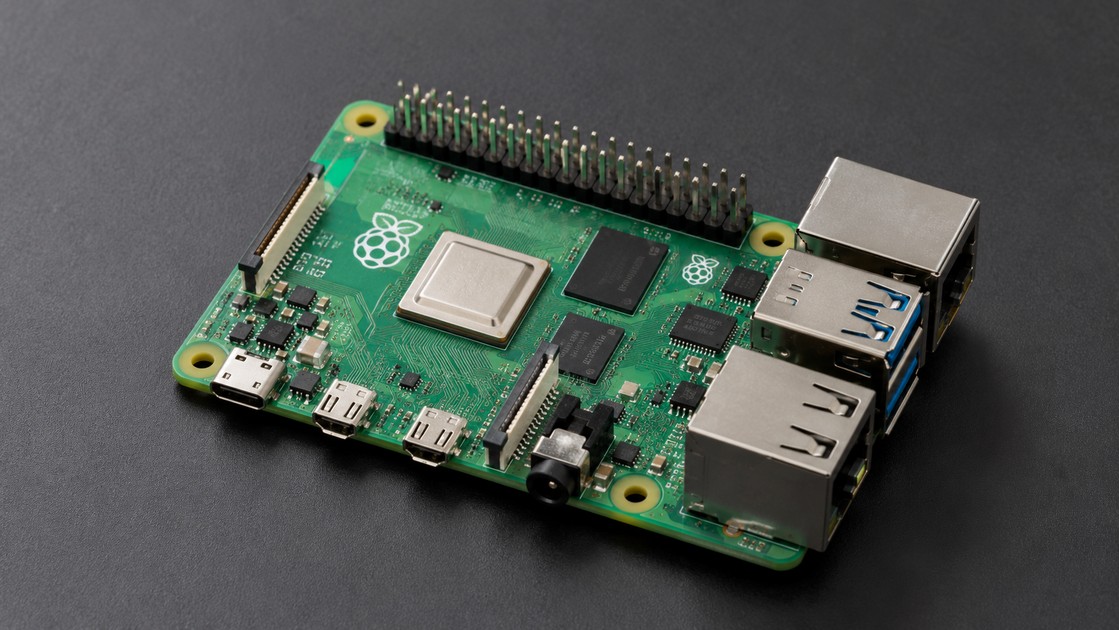
1. 前言
前面的 Raspberry Pi 通訊章節,我們已經學過:
I²C
SPI
現在要進入第三種非常重要、也非常常見的硬體通訊方式:
UARTUART 全名:
Universal Asynchronous Receiver-Transmitter中文通常稱為:
通用非同步收發器對電子與嵌入式系統而言,UART 幾乎無所不在。
例如:
Arduino
GPS Module
ESP32
ESP8266
STM32
LoRa Module
Bluetooth Module
RFID Module
PLC
Industrial Controller
Debug Console
很多設備都可以透過 UART 進行資料交換。
本章要完成一個非常實用的系統:
Raspberry Pi
     │
     │ UART
     ▼
Arduino UNO R3
讓 Raspberry Pi 與 Arduino 之間可以:
Raspberry Pi → Arduino
Arduino → Raspberry Pi
雙向交換資料。
更重要的是,我們會處理一個不能忽略的電氣問題:
Raspberry Pi GPIO = 3.3V Logic

Arduino UNO R3 = 5V Logic
Raspberry Pi 官方明確警告,所有 Raspberry Pi UART 都使用 3.3V 邏輯電位,直接連接 5V 訊號可能造成硬體損壞;Arduino UNO R3 官方規格則標示其 Operating Voltage 為 5V,D0/RX 與 D1/TX 是 ATmega328P 的 TTL Serial UART。
因此本章不只會教:
程式怎麼寫還會完整說明:
線要怎麼接
為什麼不能直接接
如何降壓
如何共地
Baud Rate 如何設定
Python 如何讀寫 Serial
Arduino 如何解析命令
這也是進入多控制器整合系統非常重要的一章。
2. 什麼是 UART?
UART 是一種:
Serial Communication也就是:
序列通訊資料會一個 Bit、一個 Bit 依序傳送。
例如我們要傳:
AASCII:
65Binary:
01000001UART 就會依照設定好的傳輸格式,將這些 Bit 依序送出去。
基本架構:
Device A
   │
   │ TX
   ▼
Device B RX
反方向:
Device B
   │
   │ TX
   ▼
Device A RX
因此最基本的雙向 UART:
Device A TX ────── Device B RX

Device A RX ────── Device B TX

Device A GND ───── Device B GND
3. UART 最重要的三條線
最基本 UART 通訊通常只需要:
TX
RX
GND
其中:
| 訊號 | 功能 |
|---|---|
| TX | Transmit,傳送 |
| RX | Receive,接收 |
| GND | Ground,共同電位參考 |
最重要的規則:
TX 接 RX,RX 接 TX。
不是:
TX → TX
RX → RX
而是:
TX → RX
RX ← TX
4. UART 接線基本原則
正確:
Device A             Device B

TX ----------------> RX

RX <---------------- TX

GND ---------------- GND
錯誤:
TX ---------------- TX

RX ---------------- RX
這也是 UART 初學者最常犯的錯誤之一。
5. 為什麼一定要共地?
假設 Raspberry Pi 說:
HIGH = 3.3V這個:
3.3V是相對於:
GND測量的。
如果 Arduino 與 Raspberry Pi 沒有共同 Ground:
Raspberry Pi GND × Arduino GND兩邊就可能沒有相同的電位參考。
因此非隔離式 UART 系統通常必須:
Raspberry Pi GND
       │
       └──────── Arduino GND
也就是:
Common Ground6. UART 為什麼叫 Asynchronous?
UART 中的:
A代表:
Asynchronous也就是:
非同步與 SPI 不同,UART 沒有:
SCLK
Clock
這條時脈線。
SPI:
MOSI
MISO
SCLK
CS
UART:
TX
RX
GND
UART 雙方是靠事先約定好的:
Baud Rate
Data Bits
Parity
Stop Bits
維持同步。
7. Baud Rate 是什麼?
Baud Rate 是 Serial 通訊非常重要的設定。
常見:
9600
19200
38400
57600
115200
例如:
9600 baud在典型 UART 設定下可以近似理解成:
每秒傳送 9600 個 Symbol對一般二進位 UART 而言,常近似視為:
9600 bit/s但一個 Byte 不只包含 8 個 Data Bit。
8. 最常見 UART 格式:8N1
很多 Serial Device 使用:
8N1代表:
8 Data Bits
No Parity
1 Stop Bit
一個典型 UART Frame:
Idle
 │
 ▼
Start Bit
 │
 ├── Data Bit 0
 ├── Data Bit 1
 ├── Data Bit 2
 ├── Data Bit 3
 ├── Data Bit 4
 ├── Data Bit 5
 ├── Data Bit 6
 ├── Data Bit 7
 │
 ▼
Stop Bit
所以:
1 Byte Data實際常需要約:
10 bits傳輸。
9. 9600 Baud 每秒大約能傳多少 Byte?
使用:
8N1一個 Byte 約需要:
10 bits因此:
9600 ÷ 10約:
960 Bytes / second這只是概略值,但非常有助於理解 UART 的資料量。
例如溫溼度:
T=25.6,H=68.2每秒傳一次,9600 baud 已經非常足夠。
10. Raspberry Pi UART 腳位
在 Raspberry Pi 40-pin GPIO Header 上,常見 UART 腳位是:
| 功能 | BCM GPIO | Physical Pin |
|---|---|---|
| TXD | GPIO14 | Pin 8 |
| RXD | GPIO15 | Pin 10 |
| GND | — | Pin 6 等 |
也就是:
GPIO14 = TX
GPIO15 = RX
對 Raspberry Pi 1~4 等常見型號,主要外部 UART 通常使用 GPIO14 / GPIO15。Raspberry Pi 官方文件也將 GPIO14 定義為 TX、GPIO15 定義為 RX。
11. Raspberry Pi 5 要特別注意
如果你使用:
Raspberry Pi 5不能直接假設:
/dev/serial0一定就是 GPIO14 / GPIO15。
Raspberry Pi 5 預設 primary UART 為:
UART10並暴露在主機板上的 dedicated debug UART Header;在特定設定下才會將 UART 配置到 GPIO14 / GPIO15。
因此 Raspberry Pi 5 使用者尤其應該先:
ls -l /dev/serial*確認 Serial Alias 實際指向哪個 UART。
12. 不要硬寫 /dev/ttyAMA0
很多舊 Raspberry Pi 教學直接寫:
/dev/ttyAMA0但不同 Raspberry Pi 型號:
Primary UART可能不是同一個 Hardware UART。
Raspberry Pi OS 提供:
/dev/serial0作為 Primary UART 的 Symbolic Link。
例如可能指向:
/dev/ttyS0或:
/dev/ttyAMA0Raspberry Pi 5 某些配置則可能是:
/dev/ttyAMA10Raspberry Pi 官方因此建議透過 /dev/serial0 這類 symbolic link 避免程式綁死特定硬體 UART。
所以一般程式優先使用:
PORT = "/dev/serial0"而不是:
PORT = "/dev/ttyAMA0"13. 查看 serial0 實際指向哪裡
執行:
ls -l /dev/serial0可能看到:
/dev/serial0 -> ttyS0或:
/dev/serial0 -> ttyAMA0Raspberry Pi 5 也可能看到其他 UART Device。
也可以:
readlink -f /dev/serial0例如:
/dev/ttyAMA014. Raspberry Pi 的 PL011 與 Mini UART
Raspberry Pi 平台中常會看到:
PL011
Mini UART
PL011 是功能較完整的 Hardware UART。
Mini UART 則較精簡。
官方指出 Mini UART:
沒有完整的 Break Detection
沒有 Framing Error Detection
沒有 Parity
FIFO 較小
Baud Rate 與 VPU Clock 有關
因此在高 Baud Rate 或較嚴格通訊需求下,PL011 通常更理想。
15. Raspberry Pi 3 / 4 為什麼 Serial 名稱常讓人混亂?
某些帶 Bluetooth 的 Raspberry Pi:
Bluetooth也會占用 UART。
因此:
UART0
UART1
Primary UART
Secondary UART
Bluetooth UART
之間的對應可能因:
Model
Overlay
Configuration
而改變。
這正是為什麼教學程式最好使用:
/dev/serial0而不是猜:
/dev/ttyAMA0Raspberry Pi 官方目前也把 /dev/serial0 定義為 Primary UART 的 symbolic link。
16. 啟用 Raspberry Pi Serial Port
最簡單的方法:
sudo raspi-config選擇:
Interface Options然後:
Serial Port目前 Raspberry Pi 官方建議硬體專題通常:
Serial Console = Disable
Serial Port Hardware = Enable
也就是:
不要讓 Linux Login Console 佔用 UART,但保留 UART Hardware 給你的 Arduino 使用。
17. raspi-config 問的第一個問題
你可能看到:
Would you like a login shell
to be accessible over serial?
本章要把 UART 給 Arduino 使用,所以選:
No意思是:
Disable Serial Console18. 第二個問題
接著:
Would you like the serial port
hardware to be enabled?
選:
Yes也就是:
Enable UART Hardware這與 Raspberry Pi 官方目前的硬體 UART 設定流程一致。
完成後重新啟動:
sudo reboot19. 為什麼要關閉 Serial Console?
因為 Raspberry Pi 可以把 UART 當成:
Linux Console例如:
Kernel Boot Message
Login:
Password:
如果同時又拿 UART 接 Arduino:
Linux Console
      │
      └── 和 Arduino Data 共用
資料就會互相干擾。
所以:
Hardware UART Project通常要:
Serial Hardware ON
Serial Console OFF
官方文件同樣建議外接 Serial Device 時如此設定。
20. 手動設定 enable_uart
UART 也可能會在:
config.txt看到:
enable_uart=1新版 Raspberry Pi OS 常見設定檔位置為:
/boot/firmware/config.txtRaspberry Pi 官方目前的 UART 設定說明亦以 /boot/firmware/config.txt 作為設定 Device Tree Overlay 等 UART 選項的位置。
但一般使用者:
優先透過 raspi-config 設定比較安全。
21. 檢查 UART Device
重新開機後:
ls -l /dev/serial*你可能看到:
/dev/serial0再:
readlink -f /dev/serial0確認真正 Hardware Device。
如果:
/dev/serial0不存在,就不要直接開始接 Arduino。
應先檢查:
UART 是否啟用
Serial Console 設定
Raspberry Pi Model
Device Tree
22. Raspberry Pi UART 是 3.3V
這是本章最重要的硬體安全觀念。
Raspberry Pi 官方明確指出:
Raspberry Pi UART 全部使用 3.3V,連接 5V 系統可能造成損壞,5V 系統應使用 Level Shifter 或適當的 3.3V Serial Adapter。
因此:
Raspberry Pi RX不能直接接:
5V UART TX23. Arduino UNO R3 是 5V
Arduino UNO R3 官方規格:
Operating Voltage = 5V而其:
D0 = RX
D1 = TX
是 ATmega328P 的 TTL Serial UART。
因此:
Arduino UNO TX屬於 5V 邏輯系統的一部分。
不能把:
Arduino TX不經處理直接接:
Raspberry Pi RX24. 最危險的錯誤接法
錯誤:
Arduino UNO TX 5V
       │
       └──────── Raspberry Pi GPIO15 RX
這可能把接近:
5V的訊號送進 Raspberry Pi GPIO。
Raspberry Pi 官方警告:
5V UART → Raspberry Pi可能造成硬體損壞。
25. Raspberry Pi TX 接 Arduino RX 呢?
方向:
Raspberry Pi TX = 3.3V
        │
        ▼
Arduino UNO RX
ATmega328P 在 5V 工作時,其一般數位輸入 HIGH Threshold 規格可低至約:
0.6 × VCC也就是:
0.6 × 5V
= 3.0V
因此 Raspberry Pi 的 3.3V HIGH 一般可以符合 Arduino UNO R3 ATmega328P 的輸入 HIGH 要求。相關輸入閾值可由 Microchip ATmega 系列電氣規格確認。
所以這個方向通常可以:
Pi TX 3.3V
      │
      ▼
UNO RX
直接連接。
但是反方向:
UNO TX 5V
      │
      ▼
Pi RX
不能直接接。
26. 最簡單方法:電阻分壓
Arduino TX 到 Raspberry Pi RX 可以加入:
Voltage Divider例如:
Arduino TX
    │
   1kΩ
    │
    ├──────── Raspberry Pi RX
    │
   2kΩ
    │
   GND
分壓公式:
Vout =
Vin × R2 / (R1 + R2)
帶入:
Vin = 5V
R1 = 1kΩ
R2 = 2kΩ
得到:
Vout =
5 × 2 / 3

≈ 3.33V
接近 Raspberry Pi 3.3V UART 所需要的邏輯範圍。
27. 完整 Raspberry Pi → Arduino 接線
Raspberry Pi TX 到 Arduino:
Raspberry Pi                Arduino UNO

GPIO14 TX
Pin 8 --------------------> D0 / RX

GND
Pin 6 --------------------- GND
這只能做到:
Pi → Arduino單向傳送。
28. 完整 Arduino → Raspberry Pi 接線
反方向一定加入降壓。
Arduino UNO TX / D1
        │
       1kΩ
        │
        ├──────── GPIO15 / Pi RX
        │
       2kΩ
        │
       GND
因此:
UNO TX
   │
Voltage Divider
   │
   ▼
Pi RX
29. Raspberry Pi 與 Arduino 完整雙向接線
完整架構:
Raspberry Pi                    Arduino UNO

GPIO14 TX
Pin 8 ------------------------> D0 RX


GPIO15 RX
Pin 10 <-----+----------------- D1 TX
             |
            1kΩ
             |
     實際分壓節點配置
             |
            2kΩ
             |
            GND


GND
Pin 6 ------------------------- GND
更準確的分壓配置:
Arduino D1/TX
      │
     1kΩ
      │
      ├──────── Raspberry Pi GPIO15/RX
      │
     2kΩ
      │
     GND
另一方向:
Raspberry Pi GPIO14/TX
      │
      └──────── Arduino D0/RX
並:
Pi GND ─────── Arduino GND30. 更正式的方式:Logic Level Translator
如果不是單純 UNO R3 實驗,而是正式產品,建議考慮:
Logic Level Translator例如適合 Push-Pull UART 的:
3.3V ↔ 5V Logic Translator架構:
Raspberry Pi
  3.3V UART
      │
      ▼
Level Translator
      │
      ▼
Arduino
  5V UART
這樣可以同時處理:
TX
RX
不同邏輯電壓。
31. 不要把 UART Level Shifter 和 RS-232 混在一起
UART TTL:
0V / 3.3V
0V / 5V
傳統 RS-232:
正負電壓兩者電氣規格不同。
因此:
Raspberry Pi UART不是直接接傳統:
DB9 RS-232如果要接:
RS-232通常需要:
MAX3232等 Transceiver。
32. UART、RS-232、RS-485 不一樣
容易混淆的三種:
| 類型 | 特性 |
|---|---|
| UART TTL | MCU Board-to-Board |
| RS-232 | 傳統 Serial Port |
| RS-485 | 差動、較遠距離、多節點 |
UART 描述的是:
Serial Data Format / PeripheralRS-232 / RS-485 還涉及:
Physical Electrical Layer不能只看:
TX
RX
名稱就直接互接。
33. 第一個實驗:Arduino 傳資料給 Raspberry Pi
首先做最簡單的:
Arduino
   │
   ▼
Counter
   │
UART
   │
   ▼
Raspberry Pi
Arduino 每秒傳:
COUNT:0
COUNT:1
COUNT:2
COUNT:3
Raspberry Pi 負責讀取。
34. Arduino 第一個 Serial 程式
Arduino UNO:
unsigned long count = 0;

void setup()
{
  Serial.begin(9600);
}

void loop()
{
  Serial.print("COUNT:");
  Serial.println(count);

  count++;

  delay(1000);
}
Arduino 官方 Serial API 用於 Arduino 與電腦或其他裝置之間的序列通訊;UNO 的 D0/RX、D1/TX 即為硬體 Serial。
35. Serial.begin(9600) 是什麼?
Serial.begin(9600);代表 Arduino UART 使用:
Baud Rate = 9600Raspberry Pi 也必須設定:
9600如果:
Arduino = 9600
Pi = 115200
就會讀到:
亂碼
錯誤字元
完全沒有有效資料
36. Serial.print 與 Serial.println
Serial.print("COUNT:");不自動換行。
Serial.println(count);送出數字後會加入 Line Ending。
所以 Raspberry Pi 可以使用:
readline()按行讀取。
Arduino 官方 Serial API 包含用於資料收發的 Serial 介面,而 pySerial 的 readline() 也特別適合以換行符號終止的文字協定。
37. Raspberry Pi 安裝 pySerial
Python 操作 Serial Port 最常使用:
pySerial套件名稱:
pyserialPython Import:
import serialpySerial 官方專案支援 Linux、Windows、macOS 等平台,提供 Python Serial Port API。
Raspberry Pi OS 可以優先使用系統 Package:
sudo apt update
sudo apt install python3-serial
安裝完成可測試:
python3 -c "import serial; print(serial.__version__)"38. 為什麼套件叫 pyserial,Import 卻叫 serial?
安裝:
pyserial但 Python:
import serial這是正常的。
不要另外安裝名稱相似但不同用途的:
serialPackage,否則容易造成 Python Module 衝突。
39. Raspberry Pi 第一個 Serial Reader
建立:
uart_read.py程式:
#!/usr/bin/env python3

import serial


uart = serial.Serial(
    port="/dev/serial0",
    baudrate=9600,
    timeout=1
)


try:

    while True:

        line = uart.readline()

        if line:

            text = line.decode(
                "utf-8",
                errors="replace"
            ).strip()

            print(text)


except KeyboardInterrupt:

    print("\nStopped")


finally:

    uart.close()
40. serial.Serial() 參數
程式:
serial.Serial(
    port="/dev/serial0",
    baudrate=9600,
    timeout=1
)
其中:
port代表:
Serial Devicebaudrate代表:
Communication Speed而:
timeout代表:
Read TimeoutpySerial 官方 API 的 Serial() 支援 Baud Rate、Data Bits、Parity、Stop Bits、Timeout 與 Flow Control 等設定。
41. 為什麼建議設定 timeout?
如果:
uart.readline()而資料始終沒有:
\n又沒有 Timeout,程式可能長時間卡在 Read。
因此:
timeout=1表示讀取最多等待一定時間。
pySerial 文件也特別提醒,使用 readline() 時應設定 Timeout,否則若一直沒有收到換行符號可能持續等待。
42. Python Serial 收到的是 bytes
這一行:
line = uart.readline()得到的不是普通:
str而是:
bytes例如:
b'COUNT:10\r\n'所以需要:
.decode("utf-8")轉成:
COUNT:10pySerial 的 API 也以 Bytes 作為 Serial Data 的基本讀寫型態。
43. strip() 的用途
Arduino:
Serial.println()會加入 Line Ending。
Python 可能收到:
COUNT:10\r\n使用:
.strip()之後:
COUNT:10這樣比較方便解析。
44. 第一個實驗預期輸出
Arduino:
COUNT:0
COUNT:1
COUNT:2
...
Raspberry Pi Terminal:
COUNT:0
COUNT:1
COUNT:2
COUNT:3
COUNT:4
如果看到這些資料,就表示:
Arduino TX
      ↓
Level Shift
      ↓
Raspberry Pi RX
已經成功。
45. 第二個實驗:Raspberry Pi 傳資料給 Arduino
現在反方向:
Raspberry Pi
    │
    ▼
"LED_ON"
    │
   UART
    │
    ▼
Arduino
    │
    ▼
Built-in LED
讓 Raspberry Pi 控制 Arduino UNO:
LED ON
LED OFF
46. Arduino 接收文字命令
Arduino 程式:
const int LED_PIN = LED_BUILTIN;

void setup()
{
  pinMode(LED_PIN, OUTPUT);

  digitalWrite(
    LED_PIN,
    LOW
  );

  Serial.begin(9600);

  Serial.setTimeout(100);
}

void loop()
{
  if (Serial.available() > 0)
  {
    String command =
      Serial.readStringUntil('\n');

    command.trim();

    if (command == "LED_ON")
    {
      digitalWrite(
        LED_PIN,
        HIGH
      );

      Serial.println(
        "OK:LED_ON"
      );
    }
    else if (command == "LED_OFF")
    {
      digitalWrite(
        LED_PIN,
        LOW
      );

      Serial.println(
        "OK:LED_OFF"
      );
    }
    else
    {
      Serial.println(
        "ERROR:UNKNOWN_COMMAND"
      );
    }
  }
}
Arduino 官方 Serial API 提供 available()、readStringUntil() 與 Timeout 等 Serial 資料處理功能。
47. Serial.available()
Serial.available()用來判斷:
Serial Receive Buffer目前有沒有資料。
因此:
if (Serial.available() > 0)就是:
收到資料後才進行解析。
Arduino 官方 Serial Reference 提供這套 Serial Buffer 讀取介面。
48. Serial.readStringUntil(‘’)
例如 Raspberry Pi 傳:
LED_ON\nArduino:
Serial.readStringUntil('\n');會讀取:
LED_ON直到:
\n為止。
Arduino 官方說明 readStringUntil() 會讀取資料直到遇到指定終止字元或 Timeout。
49. Raspberry Pi 傳送命令程式
建立:
uart_led_control.py內容:
#!/usr/bin/env python3

import time
import serial


uart = serial.Serial(
    port="/dev/serial0",
    baudrate=9600,
    timeout=1
)


time.sleep(2)


def send_command(command):

    message = (
        command + "\n"
    )

    uart.write(
        message.encode(
            "utf-8"
        )
    )

    response = (
        uart.readline()
        .decode(
            "utf-8",
            errors="replace"
        )
        .strip()
    )

    print(
        "Response:",
        response
    )


try:

    send_command(
        "LED_ON"
    )

    time.sleep(2)

    send_command(
        "LED_OFF"
    )


finally:

    uart.close()
50. 為什麼命令後要加 ?
如果 Arduino 使用:
readStringUntil('\n')Python 就必須送:
"LED_ON\n"而不是:
"LED_ON"否則 Arduino 只能等待:
Timeout才知道這筆命令結束。
因此在設計 UART Text Protocol 時:
Message Terminator非常重要。
51. 常見 Terminator
常見:
\nLinux / Unix 常見換行:
LF也可能看到:
\r或:
\r\n也就是:
CR
LF
CRLF
本章統一使用:
\n作為命令終止符。
52. UART 雙向命令流程
完整流程:
Raspberry Pi
     │
     │ LED_ON\n
     ▼
Arduino
     │
     ├── Parse Command
     │
     ├── LED ON
     │
     ▼
OK:LED_ON\n
     │
     ▼
Raspberry Pi
這已經不只是:
Serial Test而是一個簡單的:
Command / Response Protocol53. 建議加入 ACK
Raspberry Pi 傳:
LED_ONArduino 不應該完全沒有回覆。
可以回:
OK:LED_ON這稱為:
Acknowledgement
ACK
如果錯誤:
ERROR:UNKNOWN_COMMAND這樣 Raspberry Pi 就知道:
命令成功還是:
命令失敗54. 第三個實驗:Arduino 感測器資料送到 Raspberry Pi
Arduino 很適合處理:
Analog Sensor
ADC
Fast GPIO
Real-time Control
Raspberry Pi 則適合:
Database
Web
Network
AI
Dashboard
所以非常實用的架構是:
Sensor
  │
  ▼
Arduino
  │
 UART
  ▼
Raspberry Pi
  │
  ├── Database
  ├── Web
  ├── MQTT
  └── Cloud
55. Arduino 傳 Analog A0
假設:
Potentiometer → Arduino A0Arduino:
void setup()
{
  Serial.begin(9600);
}

void loop()
{
  int value =
    analogRead(A0);

  Serial.print(
    "ADC:"
  );

  Serial.println(
    value
  );

  delay(500);
}
Arduino UNO 具有 6 組 Analog Input,預設 ADC 解析度為 10 bit,因此常見數值範圍是 0~1023。
56. Raspberry Pi 解析 ADC
收到:
ADC:512Python:
if text.startswith(
    "ADC:"
):

    value = int(
        text.split(":")[1]
    )

    print(
        "ADC Value:",
        value
    )
完整資料流:
Potentiometer
     │
     ▼
Arduino ADC
     │
   0~1023
     │
     ▼
UART
     │
     ▼
Raspberry Pi Python
57. 完整 ADC Receiver
#!/usr/bin/env python3

import serial


uart = serial.Serial(
    "/dev/serial0",
    9600,
    timeout=1
)


try:

    while True:

        line = uart.readline()

        if not line:
            continue

        text = (
            line.decode(
                "utf-8",
                errors="replace"
            )
            .strip()
        )

        if text.startswith(
            "ADC:"
        ):

            try:

                value = int(
                    text.split(
                        ":",
                        1
                    )[1]
                )

                print(
                    "ADC:",
                    value
                )

            except ValueError:

                print(
                    "Invalid ADC:",
                    text
                )


except KeyboardInterrupt:

    print(
        "\nStopped"
    )


finally:

    uart.close()
58. 第四個實驗:Arduino 傳多個 Sensor Value
例如:
Temperature
Humidity
Light
可以設計:
T:25.6,H:68.3,L:712架構:
Arduino
  │
  ├── Temperature
  ├── Humidity
  └── Light
       │
       ▼
T:25.6,H:68.3,L:712
       │
       ▼
Raspberry Pi
59. Arduino CSV 形式傳送
例如:
float temperature = 25.6;
float humidity = 68.3;
int light = 712;

Serial.print(
  temperature,
  1
);

Serial.print(",");

Serial.print(
  humidity,
  1
);

Serial.print(",");

Serial.println(
  light
);
輸出:
25.6,68.3,71260. Raspberry Pi 解析 CSV
Python:
parts = text.split(",")

if len(parts) == 3:

    temperature = float(
        parts[0]
    )

    humidity = float(
        parts[1]
    )

    light = int(
        parts[2]
    )
完整:
try:

    temperature = float(
        parts[0]
    )

    humidity = float(
        parts[1]
    )

    light = int(
        parts[2]
    )

except ValueError:

    print(
        "Invalid packet:",
        text
    )
61. CSV 的優點
CSV:
25.6,68.3,712優點:
簡單
資料短
Arduino 容易產生
Python 容易解析
缺點:
不知道每一欄是什麼
增加欄位後相容性較差
錯一個欄位容易位移
62. Key-Value Protocol
更容易閱讀:
TEMP=25.6,HUM=68.3,LIGHT=712優點:
可讀性較好
欄位名稱清楚
新增欄位較容易
Python 可以解析成:
data = {}

for item in text.split(","):

    key, value = item.split(
        "=",
        1
    )

    data[key] = value
63. JSON 可以嗎?
當然可以。
Arduino 傳:
{"temp":25.6,"hum":68.3,"light":712}Raspberry Pi:
import json

data = json.loads(
    text
)
取得:
data["temp"]
data["hum"]
data["light"]
64. JSON 優點與缺點
優點:
結構清楚
容易擴充
Python 非常好解析
適合 Web / MQTT
缺點:
資料較長
Arduino SRAM 使用增加
解析較複雜
對 Arduino UNO 這種 SRAM 只有約:
2 KB的小型 MCU,應避免不必要的大型 JSON Document。Arduino UNO R3 官方規格標示 ATmega328P 有 2 KB SRAM。
65. 簡單系統先不要過度設計
如果只有:
一個溫度
一個濕度
沒有必要一開始就設計:
複雜 Binary Protocol
CRC32
Encryption
JSON RPC
例如:
T=25.6,H=68.3就已經很好用。
等系統變大再升級。
66. 完整命令 Protocol 範例
可以定義 Raspberry Pi → Arduino:
PING
LED_ON
LED_OFF
GET_ADC
GET_STATUS
Arduino 回:
PONG
OK
ADC=512
STATUS=READY
ERROR=UNKNOWN
這就已經是一個簡單完整的 Device Protocol。
67. Arduino 完整 Command Server
const int LED_PIN =
  LED_BUILTIN;

void setup()
{
  pinMode(
    LED_PIN,
    OUTPUT
  );

  digitalWrite(
    LED_PIN,
    LOW
  );

  Serial.begin(
    9600
  );

  Serial.setTimeout(
    100
  );
}

void loop()
{
  if (
    Serial.available() <= 0
  )
  {
    return;
  }

  String command =
    Serial.readStringUntil(
      '\n'
    );

  command.trim();


  if (
    command == "PING"
  )
  {
    Serial.println(
      "PONG"
    );
  }

  else if (
    command == "LED_ON"
  )
  {
    digitalWrite(
      LED_PIN,
      HIGH
    );

    Serial.println(
      "OK:LED_ON"
    );
  }

  else if (
    command == "LED_OFF"
  )
  {
    digitalWrite(
      LED_PIN,
      LOW
    );

    Serial.println(
      "OK:LED_OFF"
    );
  }

  else if (
    command == "GET_ADC"
  )
  {
    int value =
      analogRead(A0);

    Serial.print(
      "ADC="
    );

    Serial.println(
      value
    );
  }

  else if (
    command == "GET_STATUS"
  )
  {
    Serial.println(
      "STATUS=READY"
    );
  }

  else
  {
    Serial.println(
      "ERROR=UNKNOWN"
    );
  }
}
68. Raspberry Pi 完整 Client
#!/usr/bin/env python3

import time
import serial


PORT = "/dev/serial0"
BAUDRATE = 9600


uart = serial.Serial(
    port=PORT,
    baudrate=BAUDRATE,
    timeout=1,
    write_timeout=1
)


time.sleep(1)


def send_command(
    command
):

    packet = (
        command.strip()
        + "\n"
    )

    uart.write(
        packet.encode(
            "utf-8"
        )
    )

    uart.flush()

    response = (
        uart.readline()
        .decode(
            "utf-8",
            errors="replace"
        )
        .strip()
    )

    return response


try:

    print(
        "PING:",
        send_command(
            "PING"
        )
    )

    print(
        "LED:",
        send_command(
            "LED_ON"
        )
    )

    time.sleep(1)

    print(
        "ADC:",
        send_command(
            "GET_ADC"
        )
    )

    print(
        "STATUS:",
        send_command(
            "GET_STATUS"
        )
    )

    time.sleep(1)

    print(
        "LED:",
        send_command(
            "LED_OFF"
        )
    )


finally:

    uart.close()
pySerial 的 write() 要求 Bytes 類型,因此 Python String 通常先用 encode();flush() 可等待待傳資料送出。
69. 為什麼 UART 程式要有 Timeout?
想像 Raspberry Pi 送:
GET_ADC但 Arduino:
斷線
死機
沒有回覆
如果 Python 永遠等待:
Response整個程式就可能卡死。
所以:
timeout=1非常重要。
正式系統更應該設計:
Timeout
Retry
Error
Reconnect
70. 加入 Timeout Detection
response = uart.readline()

if not response:

    print(
        "ERROR: timeout"
    )
這比假設:
Arduino 一定會回更可靠。
71. 加入 Retry
例如:
def send_with_retry(
    command,
    retries=3
):

    for attempt in range(
        retries
    ):

        response = (
            send_command(
                command
            )
        )

        if response:

            return response

        print(
            "Retry:",
            attempt + 1
        )

    return None
這樣可以提高:
Serial Communication Reliability72. 不要無限 Retry
錯誤:
Arduino 沒回
 ↓
Retry
 ↓
Retry
 ↓
Retry
 ↓
永遠不停止
比較好的做法:
Retry 3 次
    │
    ▼
失敗
    │
    ▼
Log Error
    │
    ▼
進入 Safe State
73. UART 資料為什麼會出現半包?
假設 Arduino 傳:
TEMP=25.6,HUM=68.3\nSerial 是:
Stream而不是保證:
一次 Read = 一個完整 Packet底層可能分成:
TEMP=25與:
.6,HUM=68.3\n所以文字 Protocol 使用:
\n做 Packet Boundary 是很合理的方法。
74. Serial 是資料流,不是訊息佇列
這個觀念很重要:
UART不知道:
Command
Packet
JSON
Temperature
它只知道:
Byte Stream「這一行是一個訊息」是我們自己定義的 Protocol。
75. 可以用 Binary Protocol 嗎?
可以。
例如:
Header
Command
Length
Payload
Checksum
結構:
AA 55 01 02 10 20 XX適合:
高速
大量資料
正式設備
通訊效率要求高
但對入門教學而言:
Text Protocol更容易 Debug。
76. Checksum 是什麼?
UART 本身不保證 Application Data 一定正確。
可以加入:
Checksum例如:
TEMP=25.6*5AReceiver 收到後重新計算:
Checksum如果不同:
Packet Invalid77. 什麼時候需要 CRC?
一般桌上實驗:
Pi ↔ Arduino
10 cm Dupont Wire
9600 baud
可能不需要 CRC。
但是:
長線
雜訊
Motor
Relay
Industrial Environment
高可靠性要求
就應考慮:
CRC
Sequence Number
ACK
Retry
甚至換成:
RS-485
CAN
等更適合的實體層。
78. UART 線不能無限延長
TTL UART 適合:
Board-to-Board
Short Distance
如果從:
Raspberry Pi拉:
20 m到 Arduino,直接使用 TTL UART 並不是好方案。
長距離應考慮:
RS-485架構:
Pi UART
   │
   ▼
RS-485 Transceiver
   │
Long Cable
   │
   ▼
RS-485 Transceiver
   │
   ▼
Arduino UART
79. 馬達附近 UART 亂碼怎麼辦?
如果:
Motor OFFUART 正常。
但:
Motor ONUART 開始出現亂碼,優先檢查:
Ground
Power Noise
Motor Suppression
Cable Routing
Decoupling
EMI
不要只一直修改 Python 程式。
80. UART 線路配置建議
盡量:
短
遠離 Motor Wire
遠離 Relay Contact
Ground 良好
必要時:
TX + GND
RX + GND
靠近配置。
正式設備甚至可以:
Twisted Pair
Shield
RS-485
降低干擾。
81. Baud Rate 越高越好嗎?
不是。
例如:
115200比:
9600快很多。
但也可能:
Signal Margin ↓
Noise Sensitivity ↑
Timing Requirement ↑
如果只是每秒傳:
20 Bytes用:
9600已經非常足夠。
82. 推薦測試順序
第一次連接建議:
9600確認完全穩定後,再測:
19200
38400
57600
115200
不要一開始:
921600然後再花大量時間 Debug。
83. Arduino UNO D0 / D1 還有一個問題
Arduino UNO:
D0 RX
D1 TX
除了連接 ATmega328P UART,也與板上的:
USB-to-Serial介面有關。
Arduino 官方文件說明 UNO 的 ATmega16U2 會把 ATmega328P Serial 通訊轉成 USB Virtual COM Port,而 D0/D1 正是硬體 Serial Pins。
因此如果 Raspberry Pi GPIO 直接接:
D0
D1
同時又使用:
Arduino Serial Monitor可能發生資料互相干擾。
84. 上傳 Arduino 程式時的注意事項
D0 / D1 同時是:
Hardware Serial與:
Sketch Upload相關的通訊線。
如果外部裝置持續驅動:
RX / TX有可能讓 Arduino Upload 發生問題。
實作時若上傳失敗,可暫時:
拔掉 Pi TX / RX完成上傳後再接回。
85. 更簡單的方法:Arduino USB 接 Raspberry Pi
其實 Raspberry Pi 和 Arduino UNO 還有一種非常方便的方法:
Arduino USB
      │
      ▼
Raspberry Pi USB
這時不需要直接接:
GPIO14
GPIO15
Arduino UNO 的 USB-to-Serial 電路會讓 Linux 出現類似:
/dev/ttyACM0的 Serial Device。
Arduino UNO 官方本身就透過板載 ATmega16U2 將 MCU UART 轉為 USB Serial。
86. USB Serial 與 GPIO UART 比較
| 項目 | GPIO UART | USB Serial |
|---|---|---|
| Raspberry Pi GPIO | GPIO14/15 | 不占用 |
| Logic Level | 要處理 | USB 已處理 |
| 接線 | TX/RX/GND | USB Cable |
| Arduino Upload | 可能干擾 | 很方便 |
| /dev Device | /dev/serial0 | 常見 /dev/ttyACM0 |
| 學習 UART 電路 | 很適合 | 比較抽象 |
| 實際開發便利性 | 中等 | 高 |
因此:
學習 UART 原理使用 GPIO UART 很有價值;如果只是要 Raspberry Pi 與 Arduino 穩定交換資料,USB Serial 往往更方便。
87. 查看 Arduino USB Serial Port
Arduino USB 接到 Raspberry Pi:
ls /dev/ttyACM*可能:
/dev/ttyACM0也可以在插入 Arduino 前後執行:
dmesg觀察新增的 Serial Device。
88. USB Serial Python 程式
原本:
port="/dev/serial0"改成:
port="/dev/ttyACM0"即可:
import serial


uart = serial.Serial(
    "/dev/ttyACM0",
    9600,
    timeout=1
)
其他程式幾乎相同。
89. USB Serial 仍然是 Serial
雖然物理連線:
USB但 Application 看到的仍然是:
Serial Port因此 Python 仍然:
import serialArduino 仍然:
Serial.begin(9600);這是非常方便的架構。
90. Arduino USB Serial 自動 Reset
Arduino UNO 開啟 USB Serial Port 時,可能因:
DTR等控制訊號觸發:
Auto Reset所以 Python 一開:
/dev/ttyACM0Arduino 可能重新啟動。
這也是很多 Arduino Python 範例會:
time.sleep(2)等待 Arduino Boot 完成的原因。
91. GPIO UART 通常不會因 Open Port 讓 UNO 自動 Reset
直接:
Pi GPIO TX/RX並沒有經過 Arduino USB-to-Serial 的 Auto Reset Circuit。
因此:
serial.Serial(
    "/dev/serial0",
    ...
)
通常不會像開啟 Arduino USB COM Port 那樣直接觸發 UNO 自動 Reset。
這也是兩種連線方式的實務差異。
92. UART 權限問題
如果出現:
Permission denied先查看:
ls -l /dev/serial0或:
ls -l /dev/ttyACM0常見 Serial Device 會屬於:
dialoutGroup。
可以檢查:
groups93. 加入 dialout Group
如果目前帳號不在:
dialout可以:
sudo usermod -aG dialout $USER然後:
Logout / Login或重新開機。
不要直接:
chmod 777 /dev/serial0當成永久解法。
94. 使用 minicom 先測試
Python 寫程式前,可以使用 Serial Terminal。
例如:
sudo apt install minicom測試:
minicom \
  -D /dev/serial0 \
  -b 9600
如果 Arduino 正在每秒輸出:
COUNT:10Minicom 應該可以看到資料。
這有助於分辨:
硬體問題還是:
Python 問題95. 也可以使用 screen
例如:
screen \
  /dev/serial0 \
  9600
如果只想快速觀察:
Serial Output非常方便。
但使用完記得完全離開 Serial Terminal,否則它仍可能佔用 Port。
96. 常見錯誤一:完全沒有資料
檢查順序:
TX / RX 是否交叉
      ↓
GND 是否共地
      ↓
UART 是否 Enable
      ↓
Serial Console 是否 Disable
      ↓
Baud Rate
      ↓
/dev/serial0 是否正確
      ↓
Arduino 是否真的有 Serial.print()
97. 常見錯誤二:全部是亂碼
例如:
▒▒▒x??最常見:
Baud Rate 不一致例如:
Arduino = 9600
Pi = 115200
改成:
9600 ↔ 960098. 常見錯誤三:Arduino → Pi 沒資料
先檢查:
Arduino TX有沒有經過:
Voltage Divider
Level Translator
再確認:
Arduino TX → Pi RX而不是:
Arduino TX → Pi TX99. 常見錯誤四:Pi → Arduino 沒資料
檢查:
Pi GPIO14 TX
      │
      ▼
Arduino D0 RX
並確認 Python 有:
uart.write(...)以及:
Arduino Baud Rate
Pi Baud Rate
一致。
100. 常見錯誤五:Python readline() 一直等
確認:
timeout=1例如:
serial.Serial(
    "/dev/serial0",
    9600,
    timeout=1
)
並確認 Arduino 有傳:
\npySerial 官方也特別提醒 readline() 依賴換行與 Timeout,否則可能長時間等待。
101. 常見錯誤六:Arduino 一直等 Command
如果 Arduino:
readStringUntil('\n')但 Python:
uart.write(
    b"LED_ON"
)
沒有:
\nArduino 就會等到 Timeout。
改成:
uart.write(
    b"LED_ON\n"
)
102. 常見錯誤七:Python 出現 UnicodeDecodeError
UART 不保證收到的一定是合法 UTF-8。
所以:
line.decode(
    "utf-8",
    errors="replace"
)
在 Debug 階段比較安全。
如果正式 Protocol 是 Binary:
不要 decode()直接處理:
bytes103. 常見錯誤八:Pi 開機文字跑進 Arduino
如果 Arduino 收到:
Linux boot message或:
login:代表:
Serial Console可能仍啟用。
回:
sudo raspi-config設定:
Serial Console = No
Serial Hardware = Yes
這正是 Raspberry Pi 官方對外接 UART Device 的建議設定。
104. 常見錯誤九:Pi 5 /dev/serial0 不在 GPIO14/15
這是 Raspberry Pi 5 特別需要注意的情況。
官方目前說明 Pi 5:
Primary UART預設為:
UART10位於 Dedicated Debug Header。
因此如果你要在 Pi 5 使用:
GPIO14
GPIO15
應先查看:
ls -l /dev/serial*並依 Pi 5 UART Device Tree 設定配置所需 UART。
可查看系統支援的 Overlay:
dtoverlay -h uart0-pi5Raspberry Pi 官方也列出了 Pi 5 專用 uart0-pi5~uart4-pi5 Device Tree Overlay。
105. 常見錯誤十:Arduino Upload 失敗
如果 Pi GPIO 接著:
D0
D1
Arduino IDE Upload 可能受干擾。
先暫時:
拔除 UARTUpload 完成後再接回。
尤其:
Pi TX → Arduino RX如果在 Arduino Bootloader Upload 期間持續送資料,容易造成干擾。
106. 常見錯誤十一:Arduino 一插 USB 就行為改變
UNO 的 D0/D1 同時與板載 USB-to-Serial 電路相關。
如果同時使用:
GPIO UART
+
Arduino USB Serial Monitor
可能產生不預期的資料競爭。
正式測試時最好只選一種主要通訊方式:
GPIO UART或:
USB Serial107. 常見錯誤十二:資料偶爾錯一個字
可能:
Baud Rate 太高
Wire 太長
Ground 不良
Noise
Power Supply Noise
Motor EMI
可以先降低:
115200
↓
57600
↓
38400
↓
9600
測試。
108. 完整通訊除錯流程
推薦:
Step 1
只接 GND

        ↓

Step 2
確認 Pi UART Enable

        ↓

Step 3
Arduino 只做 Serial.println("HELLO")

        ↓

Step 4
只接 Arduino TX → Divider → Pi RX

        ↓

Step 5
Minicom 測試

        ↓

Step 6
Python Reader 測試

        ↓

Step 7
加入 Pi TX → Arduino RX

        ↓

Step 8
測試 LED_ON

        ↓

Step 9
加入 ACK

        ↓

Step 10
最後才加入 Sensor
這樣比一次接完所有東西容易 Debug 很多。
109. Loopback Test
如果懷疑 Raspberry Pi UART 本身有問題,可以做:
Pi TX
 │
 └──── Pi RX
Loopback。
也就是:
GPIO14 TX
     │
     └──────── GPIO15 RX
注意:
Loopback 測試時不要再同時接 Arduino。
Python:
uart.write(
    b"HELLO\n"
)

print(
    uart.readline()
)
如果收到:
HELLO代表 Raspberry Pi UART 基本 TX / RX 正常。
110. Loopback 不需要 Level Shift
因為:
Pi TX = 3.3V
Pi RX = 3.3V
所以:
Pi TX → Pi RX是同一邏輯電位。
但:
Arduino TX → Pi RX是不同電壓系統,不能因此類推。
111. 完整 Arduino Sensor Server
以下建立一個稍微完整的 Arduino UART Device。
功能:
PING
GET_ADC
GET_UPTIME
LED_ON
LED_OFF
Arduino:
const int LED_PIN =
  LED_BUILTIN;

void setup()
{
  pinMode(
    LED_PIN,
    OUTPUT
  );

  digitalWrite(
    LED_PIN,
    LOW
  );

  Serial.begin(
    9600
  );

  Serial.setTimeout(
    100
  );

  Serial.println(
    "READY"
  );
}

void loop()
{
  if (
    Serial.available() == 0
  )
  {
    return;
  }

  String cmd =
    Serial.readStringUntil(
      '\n'
    );

  cmd.trim();


  if (
    cmd == "PING"
  )
  {
    Serial.println(
      "PONG"
    );
  }

  else if (
    cmd == "GET_ADC"
  )
  {
    int adc =
      analogRead(A0);

    Serial.print(
      "ADC="
    );

    Serial.println(
      adc
    );
  }

  else if (
    cmd == "GET_UPTIME"
  )
  {
    Serial.print(
      "UPTIME="
    );

    Serial.println(
      millis()
    );
  }

  else if (
    cmd == "LED_ON"
  )
  {
    digitalWrite(
      LED_PIN,
      HIGH
    );

    Serial.println(
      "OK"
    );
  }

  else if (
    cmd == "LED_OFF"
  )
  {
    digitalWrite(
      LED_PIN,
      LOW
    );

    Serial.println(
      "OK"
    );
  }

  else
  {
    Serial.print(
      "ERROR="
    );

    Serial.println(
      cmd
    );
  }
}
112. Raspberry Pi 完整互動式 Serial Console
#!/usr/bin/env python3

import time
import serial


PORT = "/dev/serial0"
BAUD = 9600


uart = serial.Serial(
    port=PORT,
    baudrate=BAUD,
    timeout=1,
    write_timeout=1
)


time.sleep(1)


try:

    print(
        "Arduino UART Console"
    )

    print(
        "Commands:"
    )

    print(
        "PING"
    )

    print(
        "GET_ADC"
    )

    print(
        "GET_UPTIME"
    )

    print(
        "LED_ON"
    )

    print(
        "LED_OFF"
    )

    print(
        "EXIT"
    )


    while True:

        command = input(
            "> "
        ).strip()

        if not command:
            continue

        if (
            command.upper()
            == "EXIT"
        ):
            break


        uart.write(
            (
                command
                + "\n"
            ).encode(
                "utf-8"
            )
        )

        uart.flush()


        response = (
            uart.readline()
        )


        if not response:

            print(
                "TIMEOUT"
            )

            continue


        text = (
            response.decode(
                "utf-8",
                errors="replace"
            )
            .strip()
        )

        print(
            "<",
            text
        )


except KeyboardInterrupt:

    print(
        "\nStopped"
    )


finally:

    uart.close()
113. 執行效果
Terminal:
Arduino UART Console
Commands:
PING
GET_ADC
GET_UPTIME
LED_ON
LED_OFF
EXIT

> PING
< PONG

> GET_ADC
< ADC=513

> LED_ON
< OK

> GET_UPTIME
< UPTIME=35219

> LED_OFF
< OK
現在 Raspberry Pi 已經可以把 Arduino 當成:
UART Peripheral Device來控制。
114. Raspberry Pi 與 Arduino 的最佳分工
這兩個平台不是互相取代,而是非常適合互補。
Arduino 擅長
ADC
PWM
Precise Timing
Interrupt
Sensor Polling
Motor Control
Real-time I/O
Raspberry Pi 擅長
Linux
Python
Database
Web Server
MQTT
Network
Cloud
Camera
OpenCV
AI
所以:
Arduino
 = Hardware Controller

Raspberry Pi
 = High-level Controller
是非常實用的架構。
115. 系統架構
Sensors
                │
                ▼
          Arduino UNO
                │
      ADC / PWM / GPIO
                │
                ▼
              UART
                │
                ▼
          Raspberry Pi
                │
     ┌──────────┼───────────┐
     ▼          ▼           ▼
 Database    Web Server     MQTT
     │          │           │
     └──────────┼───────────┘
                ▼
              Cloud
116. 實作專題一:Arduino Sensor Gateway
Arduino 收集:
Temperature
Humidity
Light
Joystick
Analog Sensor
再透過 UART:
Arduino
  │
  ▼
Raspberry Pi
Raspberry Pi:
Save to MySQL
Display Web Dashboard
MQTT Upload
Send Alert
這就是:
Sensor Gateway117. 實作專題二:Raspberry Pi 控制 Arduino Robot
架構:
Web Browser
    │
    ▼
Raspberry Pi
    │
    │ UART
    ▼
Arduino
    │
    ▼
Motor Driver
    │
    ▼
Robot
Raspberry Pi 傳:
FORWARD
BACKWARD
LEFT
RIGHT
STOP
Arduino 負責:
Motor Timing
PWM
Direction
118. Robot UART Protocol
例如:
FWD:150
BACK:150
LEFT:100
RIGHT:100
STOP
其中:
150可以表示:
PWM SpeedArduino 解析後:
Motor Driver立即執行。
119.延伸專題:Raspberry Pi Camera + Arduino 視覺控制
Raspberry Pi 可以透過攝影機取得影像,利用 Python 與影像辨識程式判斷物體位置,再透過本章介紹的 UART 通訊,將控制命令傳送給 Arduino。
Arduino 接收到控制命令後,負責驅動伺服馬達或馬達驅動模組。
此專題結合三項技術:
Raspberry Pi:影像取得與辨識。
UART:傳送控制命令。
Arduino:執行硬體動作。
這是一個延伸應用示例,不需要在本章重新教學完整的影像辨識技術。
Camera
   │
   ▼
Raspberry Pi
   │
   ▼
AI Detect Object
   │
   ▼
UART Command
   │
   ▼
Arduino
   │
   ▼
Servo / Motor
例如:
Person Left
       │
       ▼
TURN_LEFT
Arduino 收到:
TURN_LEFT控制 Servo 或 Motor。
120.實作專題四:Arduino ADC 擴充 Raspberry Pi
第 13 章我們使用:
MCP3008幫 Raspberry Pi 增加 ADC。
另一種方式:
Analog Sensor
      │
      ▼
Arduino ADC
      │
      ▼
UART
      │
      ▼
Raspberry Pi
Arduino UNO 本身有:
10-bit ADC因此也可以成為 Raspberry Pi 的:
Remote ADC ControllerArduino UNO 官方規格確實提供 6 組 Analog Input 與 10-bit ADC。
121. 實作專題五:Raspberry Pi + Arduino HMI
可以讓 Raspberry Pi 負責:
Web UI
Touch Screen
Database
Arduino 負責:
Relay
Motor
Sensor
Button
Encoder
架構:
Touchscreen
    │
    ▼
Raspberry Pi
    │
    ▼
UART
    │
    ▼
Arduino
    │
 ┌──┼───┐
 ▼  ▼   ▼
LED Relay Motor
形成:
Human Machine Interface
HMI
122. 實作專題六:Industrial Gateway
更進一步:
Machine Sensor
      │
      ▼
Arduino / MCU
      │
      ▼
UART
      │
      ▼
Raspberry Pi
      │
      ├── Ethernet
      ├── Wi-Fi
      ├── MQTT
      └── Database
就可以做:
Industrial IoT Gateway123. UART 與 I²C、SPI 如何選?
| 項目 | UART | I²C | SPI |
|---|---|---|---|
| 基本線數 | TX/RX | SDA/SCL | MOSI/MISO/SCLK/CS |
| Clock | 無 | 有 | 有 |
| 全雙工 | 可 | 通常非全雙工 | 可 |
| 多裝置 | 不方便 | 很方便 | 使用多 CS |
| 長距離 | TTL 不適合 | 不適合 | 不適合 |
| MCU 通訊 | 很方便 | 可以 | 可以 |
| Debug | 非常方便 | 不方便 | 不方便 |
| GPS | 常見 | 少 | 少 |
| Arduino ↔ Pi | 很適合 | 可 | 可 |
124. 什麼時候用 UART?
非常適合:
Pi ↔ Arduino
Pi ↔ ESP32
Pi ↔ GPS
Pi ↔ LoRa
Pi ↔ Bluetooth
Pi ↔ MCU
Debug Console
因為:
Protocol Simple只要:
TX
RX
GND
Baud Rate
就能開始。
125. 什麼時候不要用 TTL UART?
如果:
距離很長
工業環境
大量 EMI
多節點
不要硬拉:
TX
RX
GND
幾十公尺。
應考慮:
RS-485
CAN
Ethernet
126. UART 設計的五個核心問題
每次設計 UART 前先問:
1. Voltage Level 是多少?

2. TX / RX 是否交叉?

3. GND 是否共地?

4. Baud Rate 是否一致?

5. Packet Boundary 如何定義?
如果這五個問題都處理好,多數 UART 專案已成功一大半。
127. 更可靠 Protocol 建議
正式專題至少可以加入:
Start Marker
Command
Payload
Sequence ID
Checksum
End Marker
例如:
$01,GETADC,*5A\n或:
$102,TEMP=25.6,HUM=68.3*7C\nRaspberry Pi 可以追蹤:
Sequence ID確認 Response 是哪一筆 Request。
128. 為什麼需要 Sequence ID?
假設 Pi 送:
Request 100
Request 101
如果 Arduino 回覆延遲,沒有 ID 就很難知道是哪一筆。
可以:
REQ,100,GET_ADC回:
RES,100,ADC=512這樣就可以正確配對。
129. Heartbeat
正式系統可以每:
5 秒送:
PINGArduino 回:
PONG如果連續:
3 次沒回:
Arduino OfflineRaspberry Pi 就可以:
寫 Log
發 Alert
停止控制
進入 Safe State
130. Watchdog
Arduino 也可以監控:
多久沒有收到 Raspberry Pi Command例如:
5 秒沒有 Heartbeat自動:
Motor OFF
Relay OFF
Safe State
這是實際自動控制系統很重要的設計。
131. 不要讓通訊錯誤造成危險動作
例如 Raspberry Pi 控制:
Motor
Pump
Heater
如果 Serial 斷線:
不要維持最後的危險狀態而應設計:
Communication Timeout
       │
       ▼
Safe State
       │
       ├── Motor OFF
       ├── Heater OFF
       └── Alarm
132. Serial Log
正式程式建議記錄:
Timestamp
Direction
Command
Response
Status
例如:
2026-08-18 08:30:01 TX PING
2026-08-18 08:30:01 RX PONG
2026-08-18 08:30:06 TX GET_ADC
2026-08-18 08:30:06 RX ADC=514
遇到問題時非常容易追查。
133. Python UART Logger
簡單範例:
from datetime import datetime


def log(
    direction,
    message
):

    now = (
        datetime.now()
        .strftime(
            "%Y-%m-%d %H:%M:%S"
        )
    )

    print(
        now,
        direction,
        message
    )
使用:
log(
    "TX",
    "PING"
)

log(
    "RX",
    "PONG"
)
134. 完整可靠版 Raspberry Pi Client
#!/usr/bin/env python3

import time
import serial

from datetime import datetime


PORT = "/dev/serial0"

BAUD = 9600

TIMEOUT = 1

RETRIES = 3


def log(
    direction,
    text
):

    now = (
        datetime.now()
        .strftime(
            "%Y-%m-%d %H:%M:%S"
        )
    )

    print(
        f"{now} "
        f"{direction} "
        f"{text}"
    )


uart = serial.Serial(
    port=PORT,
    baudrate=BAUD,
    timeout=TIMEOUT,
    write_timeout=TIMEOUT
)


def send_command(
    command
):

    packet = (
        command.strip()
        + "\n"
    )

    log(
        "TX",
        command
    )

    uart.write(
        packet.encode(
            "utf-8"
        )
    )

    uart.flush()

    raw = uart.readline()

    if not raw:

        return None

    response = (
        raw.decode(
            "utf-8",
            errors="replace"
        )
        .strip()
    )

    log(
        "RX",
        response
    )

    return response


def request(
    command
):

    for attempt in range(
        1,
        RETRIES + 1
    ):

        result = (
            send_command(
                command
            )
        )

        if result:

            return result

        log(
            "WARN",
            (
                "Timeout "
                f"{attempt}/"
                f"{RETRIES}"
            )
        )

    return None


try:

    while True:

        result = request(
            "PING"
        )

        if result != "PONG":

            log(
                "ERROR",
                "Arduino offline"
            )

        time.sleep(5)


except KeyboardInterrupt:

    print(
        "\nStopped"
    )


finally:

    uart.close()
135. Raspberry Pi 開機自動啟動 UART 程式
當專題完成後,可能希望:
Raspberry Pi Boot
       │
       ▼
UART Service Start
       │
       ▼
Connect Arduino
正式 Linux 系統通常建議:
systemd而不是只把 Python 程式手動開在 Terminal。
例如:
arduino-uart.service可以由 systemd:
自動啟動
異常重啟
Log
服務管理
136. Serial 程式不應依賴 sudo
如果:
uart = serial.Serial(...)只有:
sudo python3 program.py才能執行,最好檢查:
Device Permission
dialout Group
而不是把整個 Python Application 永遠用:
root執行。
137. 安全接線總整理
Raspberry Pi 與 Arduino UNO R3:
Pi GPIO14 TX
     │
     └────────── UNO D0 RX
Arduino → Pi:
UNO D1 TX
     │
    1kΩ
     │
     ├────────── Pi GPIO15 RX
     │
    2kΩ
     │
    GND
Ground:
Pi GND
  │
  └───────────── UNO GND
Raspberry Pi 官方明確要求 5V 系統不要直接接入 3.3V UART。
138. 本章實作材料
基本實驗:
Raspberry Pi
Arduino UNO R3
Breadboard
Dupont Wire
1kΩ Resistor
2kΩ Resistor
USB Cable
如果只使用:
Arduino USB Serial甚至只需要:
Raspberry Pi
Arduino UNO
USB Cable
即可。
139. 本章建議實驗順序
推薦:
Experiment 1
Arduino Serial.println()

        ↓

Experiment 2
Arduino TX → Pi RX

        ↓

Experiment 3
Python pySerial Reader

        ↓

Experiment 4
Pi TX → Arduino RX

        ↓

Experiment 5
LED_ON / LED_OFF

        ↓

Experiment 6
Command / Response

        ↓

Experiment 7
Arduino ADC Data

        ↓

Experiment 8
Sensor Protocol

        ↓

Experiment 9
Timeout / Retry

        ↓

Experiment 10
UART + Web / MQTT
140. 常見問題 FAQ
Q1:Raspberry Pi UART 是幾 V?
3.3V LogicRaspberry Pi 官方警告 UART 不能直接連 5V System。
Q2:Arduino UNO UART 是幾 V?
Arduino UNO R3 Operating Voltage:
5V其 D0/RX、D1/TX 為 ATmega328P Hardware Serial Pins。
Q3:Arduino TX 可以直接接 Raspberry Pi RX 嗎?
不建議,也不應直接接。
Arduino UNO TX 是 5V Logic System,而 Raspberry Pi UART 是 3.3V。
應使用:
Voltage Divider或:
Logic Level TranslatorRaspberry Pi 官方明確警告 5V 系統直接接 UART 可能造成損壞。
Q4:Raspberry Pi TX 可以直接接 Arduino UNO RX 嗎?
UNO R3 的 ATmega328P 在 5V 工作時,一般 Digital Input HIGH 最低規格約為:
0.6 × VCC
≈ 3.0V
因此 Raspberry Pi 3.3V TX 一般可以被 UNO 判定為 HIGH。
如果希望跨不同 MCU、提高介面一致性,使用正確的 Logic Level Translator 仍是更通用的方法。
Q5:UART 一定要接 GND 嗎?
非隔離式 UART:
要雙方需要:
Common Ground作為電位參考。
Q6:TX 要接 TX 還是 RX?
TX → RX

RX ← TX
也就是交叉。
Q7:Raspberry Pi UART 用哪個 Port?
一般程式優先:
/dev/serial0而不是硬寫:
/dev/ttyAMA0因為不同 Pi 型號 Primary UART 可能對應不同 Linux Device。
Q8:Raspberry Pi 5 也是 /dev/serial0 嗎?
可以有:
/dev/serial0但 Pi 5 預設 Primary UART 是:
UART10位於 Dedicated Debug Header,因此 /dev/serial0 不應直接假設就是 40-pin Header 的 GPIO14/15。
Q9:Pi 5 要使用 GPIO14/15 UART 怎麼辦?
先確認:
ls -l /dev/serial*以及:
readlink -f /dev/serial0再依 Raspberry Pi 5 Device Tree UART 配置設定所需 UART。官方提供:
uart0-pi5
uart1-pi5
uart2-pi5
uart3-pi5
uart4-pi5
等 Overlay。
Q10:為什麼 Serial 收到亂碼?
最常見:
Baud Rate 不一致其次:
Noise
Wrong Ground
Wrong Port
Wire Too Long
Q11:9600 還是 115200?
初學:
9600非常適合。
資料量變大後再測:
115200是否穩定。
Q12:可以用 USB 讓 Arduino 與 Pi 通訊嗎?
可以,而且非常方便。
Arduino UNO USB 接到 Raspberry Pi 後通常會出現:
/dev/ttyACM0Python 一樣使用:
serial.Serial()即可。
Q13:GPIO UART 和 USB Serial 哪個比較好?
學習底層 UART:
GPIO UART實際快速整合:
USB Serial通常更方便。
Q14:為什麼 Arduino Upload 失敗?
如果外部設備接在:
D0 / D1可能干擾 Bootloader Serial Upload。
上傳時可暫時移除 UART 接線。
Q15:可以用 SoftwareSerial 避開 D0/D1 嗎?
Arduino UNO 確實可以透過 SoftwareSerial 類型方案使用其他 Digital Pin 建立額外 Serial Port;Arduino 官方 UNO 文件也提到 SoftwareSerial 可在其他 Digital Pins 上建立 Serial Communication。
不過 Software Serial 會占用更多 CPU Timing 資源,也不適合所有高速或高可靠性情境。
Q16:Raspberry Pi 可以同時接多個 UART Device 嗎?
視 Raspberry Pi 型號與可用 UART 而定。
例如 Raspberry Pi 4 類平台有額外可啟用 UART,Raspberry Pi 5 也提供多組 PL011 UART 與 Pi 5 專用 Device Tree Overlay。
另一種簡單方式是使用多個:
USB-to-UARTAdapter。
Q17:UART 可以傳中文嗎?
技術上可以,UART 傳的是 Bytes。
例如 UTF-8 中文:
"溫度=25.6\n".encode(
"utf-8"
)但 Arduino UNO SRAM 很小,因此一般 Embedded Protocol 建議優先使用:
ASCII
English Keys
Numbers例如:
TEMP=25.6比較簡單可靠。
Q18:Serial.write 和 Serial.print 有什麼差別?
概念上:
Serial.print()適合把數字或文字格式化成可閱讀的字元。
Serial.write()更適合直接送原始 Byte Data。
Text Protocol 可以優先:
print / printlnBinary Protocol 才較常大量使用:
writeQ19:可以直接傳 Binary Struct 嗎?
可以,但要考慮:
Endian
Data Type Size
Padding
Version
Checksum因此初學建議:
Text Protocol比較容易 Debug。
Q20:UART 可以做 IoT 嗎?
UART 本身不是 Internet Protocol。
但可以:
Arduino
│
UART
▼
Raspberry Pi
│
MQTT
▼
InternetRaspberry Pi 成為:
UART-to-IoT Gateway141. 本章學習重點
完成本章後,你應該已經理解:
- UART 是非同步 Serial Communication
- UART 基本訊號為 TX、RX、GND
- TX 必須接對方 RX
- 非隔離式 UART 需要 Common Ground
- Baud Rate 必須一致
- 常見 Serial Format 是 8N1
- Raspberry Pi UART 使用 3.3V Logic
- Arduino UNO R3 使用 5V Logic
- Arduino TX 不應直接連 Raspberry Pi RX
- 可以使用 Voltage Divider 降低 5V TX
- Raspberry Pi GPIO14 常用作 TX
- Raspberry Pi GPIO15 常用作 RX
- Raspberry Pi 不同型號 UART Device 名稱可能不同
- /dev/serial0 比硬寫 /dev/ttyAMA0 更通用
- Raspberry Pi 5 UART 配置與早期型號不同
- Serial Console 與 UART Hardware 是兩個不同設定
- 外接 UART Device 通常要關閉 Serial Console
- Python 可以使用 pySerial
- serial.Serial() 可以設定 Port、Baud Rate 與 Timeout
- Python Serial Write 使用 Bytes
- readline() 適合 newline-based Text Protocol
- Arduino 可以使用 Serial.begin()
- Arduino 可以使用 Serial.available()
- Arduino 可以使用 readStringUntil()
- Raspberry Pi 可以控制 Arduino LED
- Arduino 可以傳 ADC 與 Sensor Data 給 Raspberry Pi
- 可以設計 Command / Response Protocol
- 可以加入 ACK、Timeout、Retry
- 可以加入 Checksum / CRC
- 長距離應考慮 RS-485,而不是直接拉 TTL UART
- Raspberry Pi 與 Arduino 也可以使用 USB Serial
- Arduino 與 Raspberry Pi 非常適合做高低階控制器分工
142. Raspberry Pi + Arduino 的核心價值
單獨使用 Raspberry Pi:
Linux
Network
Python
Database
Web
AI非常強。
單獨使用 Arduino:
GPIO
ADC
PWM
Timer
Interrupt
Real-time Control非常方便。
兩者透過 UART:
Arduino
│
│ Sensor / Control Data
▼
Raspberry Pi
│
│ High-Level Command
▼
Arduino就可以把兩者優勢結合。
143. 完整系統架構
Internet
│
▼
Web / MQTT
│
▼
Raspberry Pi
┌────────┴────────┐
│ │
Database AI
│ │
└────────┬────────┘
│
│ UART
▼
Arduino UNO
┌────────┼────────┐
▼ ▼ ▼
Sensor Relay Motor
│ │ │
▼ ▼ ▼
ADC Load Motion這就是一個非常典型的:
Linux SBC
+
Microcontroller混合式 Embedded Architecture。
144. 本章總結
UART 是 Raspberry Pi 硬體通訊中非常值得熟練的一項技術。
I²C:
適合多個低速周邊SPI:
適合高速同步周邊UART:
非常適合兩個控制器直接交換資料本章最重要的第一個觀念:
TX → RX
RX ← TX
GND ↔ GND第二個觀念:
Baud Rate 必須一致第三個也是最重要的安全觀念:
Raspberry Pi = 3.3V
Arduino UNO = 5V所以:
Arduino TX
│
▼
Level Conversion
│
▼
Raspberry Pi RX不能省略電位相容性的考量。Raspberry Pi 官方也明確警告 5V UART 系統必須經過適當的 Level Conversion 才能安全連接。
當我們再加入:
Python pySerial和 Arduino:
Serial就能建立:
Raspberry Pi
│
│ Command
▼
Arduino
│
│ Sensor Data
▼
Raspberry Pi的完整雙向系統。
這時 Arduino 可以專門處理:
Sensor
ADC
PWM
Motor
Relay
Real-time Control而 Raspberry Pi 負責:
Web
Database
Network
MQTT
Camera
OpenCV
AI這種架構不只是 Arduino 練習。
它實際上已經非常接近:
IoT Gateway、Robot Controller、Industrial Controller 與 Edge Computing 系統常見的多控制器架構。
145. 本章核心流程圖
Raspberry Pi
3.3V UART Logic
│
┌─────────┴─────────┐
│ │
GPIO14 TX GPIO15 RX
│ ▲
│ │
│ Level Conversion
│ │
▼ │
D0 / RX D1 / TX
│ │
└─────────┬─────────┘
│
Arduino UNO
5V Logic System
│
┌─────────┼─────────┐
▼ ▼ ▼
Sensor PWM Motor
│ │ │
└─────────┼─────────┘
▼
Physical World軟體流程:
Python
│
▼
pySerial
│
▼
/dev/serial0
│
▼
UART
│
▼
Arduino Serial
│
▼
Command Parser
│
├── Sensor Read
├── LED
├── Relay
├── Servo
└── Motor146. 下一章預告
第 15 章 Raspberry Pi 控制繼電器、馬達與伺服馬達:外部負載控制入門
下一章將把 Raspberry Pi 從:
資料通訊正式帶入:
Physical Control我們將介紹:
Relay
DC Motor
MOSFET
Flyback Diode
H-Bridge
Servo
PWM
External Power
Common Ground並建立:
Raspberry Pi
│
▼
Driver Circuit
│
├── Relay
├── DC Motor
└── Servo讓 Raspberry Pi 不只可以:
讀取資料
傳送資料還能真正控制:
風扇
水泵
馬達
機械手臂
自動門
機器人正式從 Raspberry Pi 通訊介面進入:
外部負載、自動控制與機器人系統。